
Managing Contractors
Managing Contractors
Section titled “Managing Contractors”Give a contractor access to the devices they need for a fixed period, then remove that access when the work ends. You manage their account in Users, their device assignments in Devices, and their VPN approval in VPN > Team. You do not need to open the NetBird administration site.
Send contractors the Contractor Getting Started guide when you invite them.
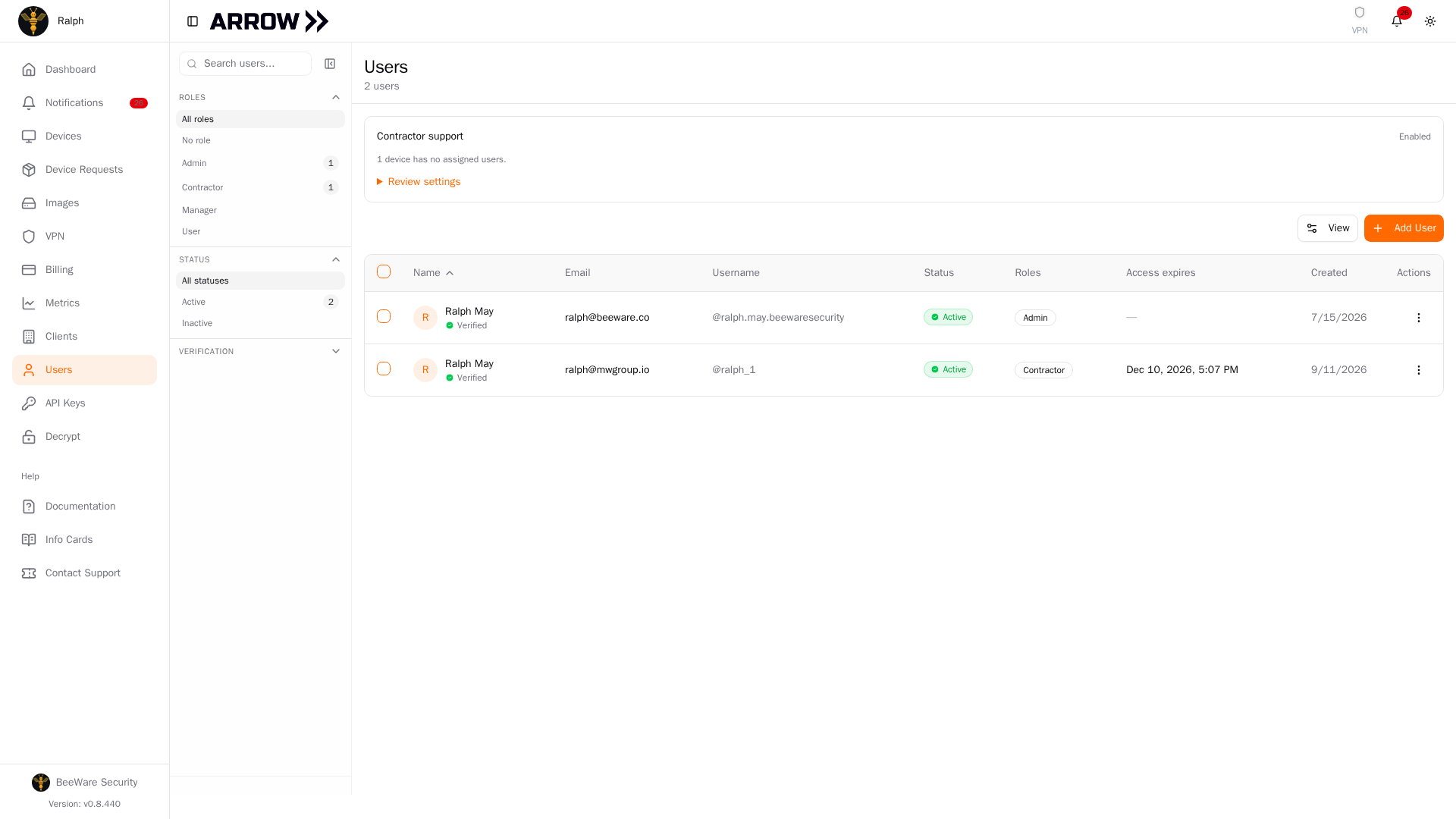
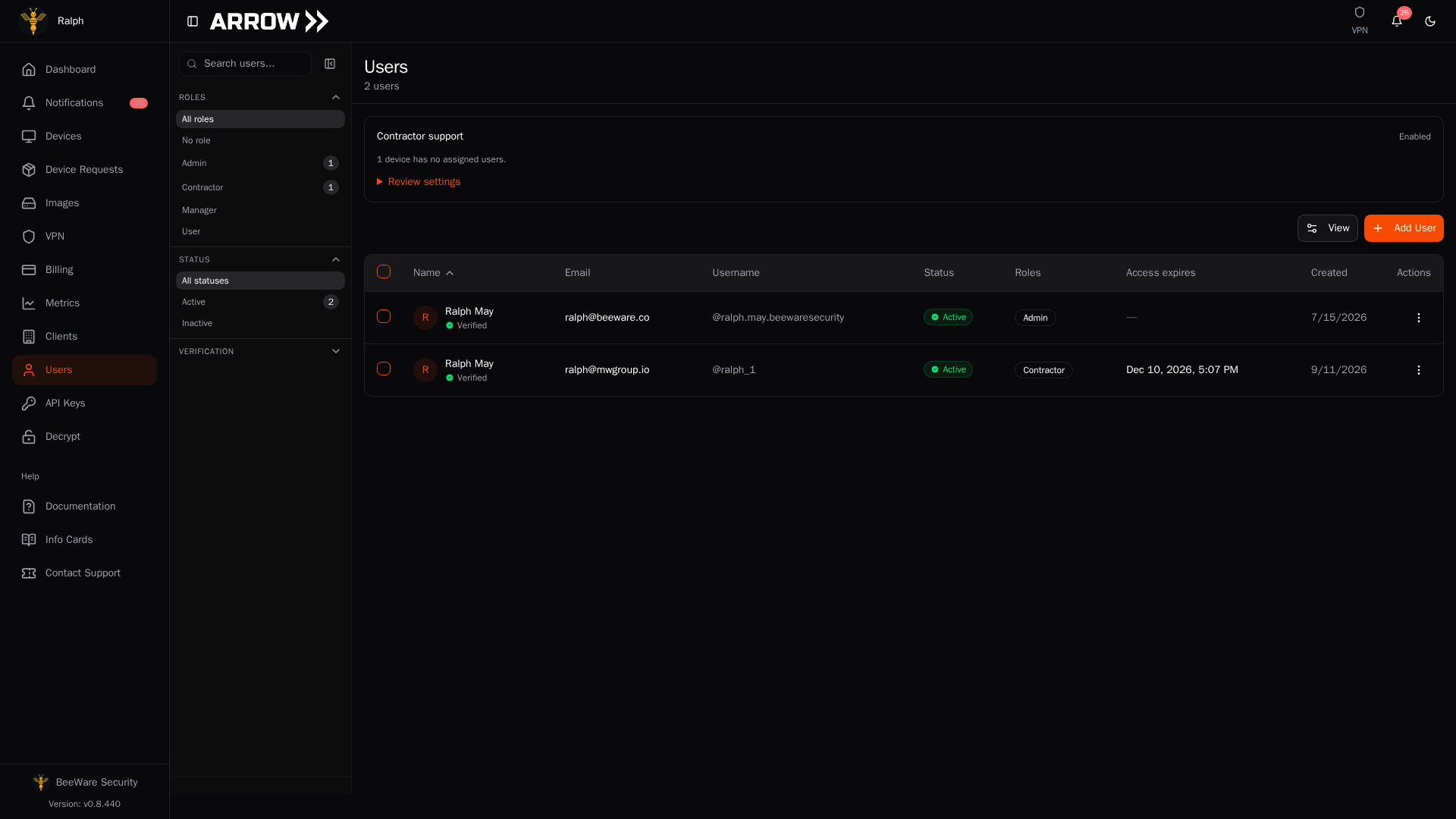
Start in Users. Contractor support appears above the user list.
Start in Users. Contractor support appears above the user list.
Before you invite anyone
Section titled “Before you invite anyone”Contractors use expiring accounts and must complete two-factor authentication. Their ARROW Console shows only their assigned devices. Connections to those devices provide administrative access, so assign only the devices needed for their work.
Open Users and check the Contractor support panel. Enabled means contractor support and its VPN restrictions are ready. Open Review settings for assignment details or to request support if it is not enabled yet.
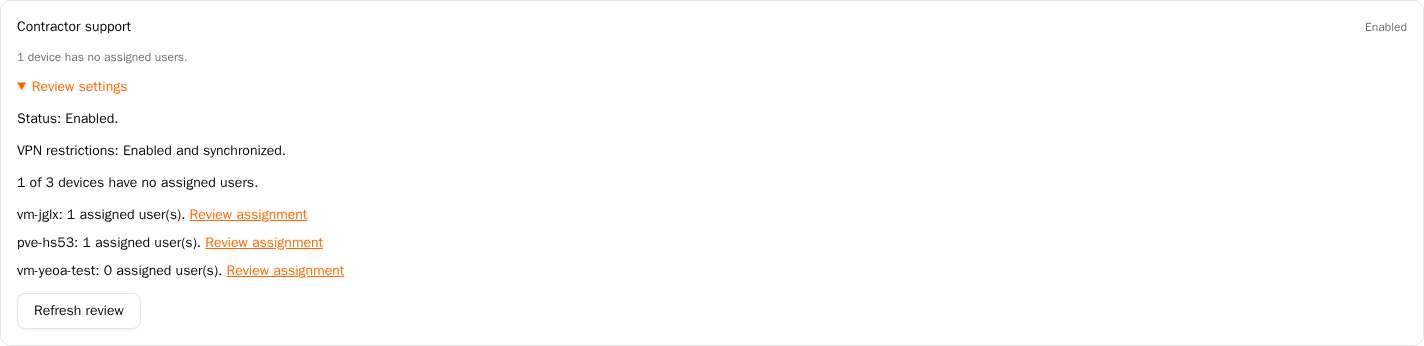
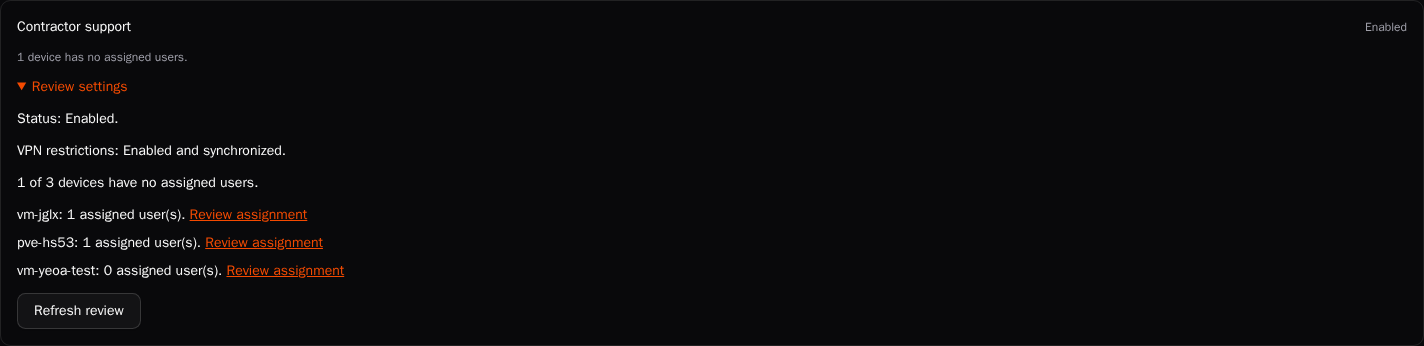
Review settings shows VPN readiness and devices that still need assignments.
Review settings shows VPN readiness and devices that still need assignments.
- Review each device and the people who still need it.
- Add those people under Devices > device Actions > Edit Request Details > Assigned Consultants.
- Check Users > Contractor support > Review settings for devices with no assigned users or VPN settings that need attention.
- If support is not enabled, acknowledge the assignment requirement and select Request contractor support. Wait for the review to finish before inviting contractors.
If the panel says VPN review needed, use Request VPN access review. A request records the review; it does not immediately change your VPN policies.
Invite a contractor
Section titled “Invite a contractor”- Open Users and select Add User.
- Choose Contractor under User Role.
- Enter their First Name, Last Name, and Email Address.
- Set Access duration (days) and select Invite contractor.
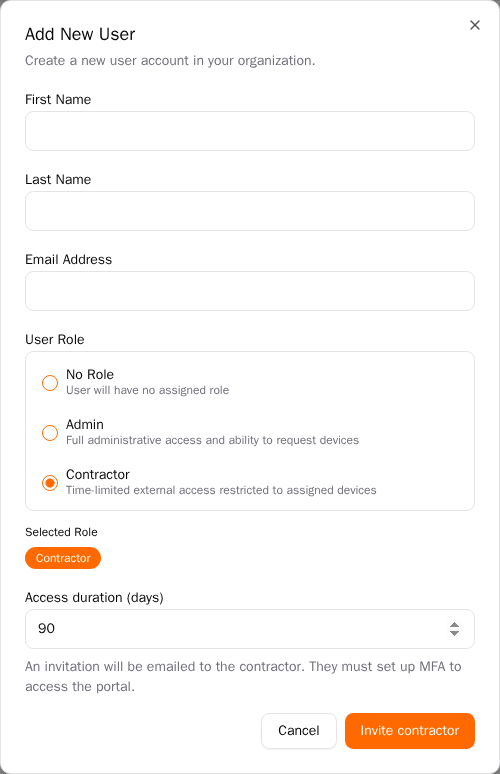
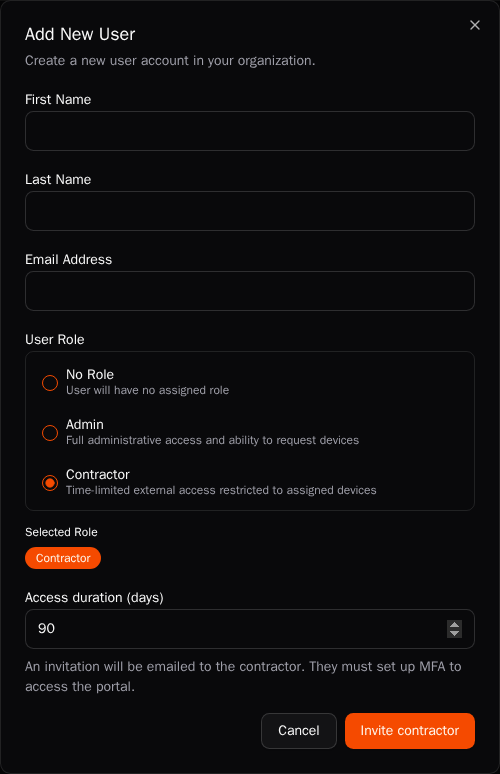
Choose Contractor under User Role, then set the access duration before sending the invitation.
Choose Contractor under User Role, then set the access duration before sending the invitation.
| Field | What it does |
|---|---|
| First Name and Last Name | Identify the contractor in your organization. |
| Email Address | Receives the invitation and identifies their sign-in account. |
| Access duration (days) | Sets account expiry between 1 and 365 days from the invitation. |
You do not choose a staff role for a contractor. Their access comes from their contractor account and device assignments.
The contractor opens the invitation, selects Set up your account, and follows the account setup email. They then sign in to ARROW and complete two-factor authentication. You do not need their password or authenticator code.
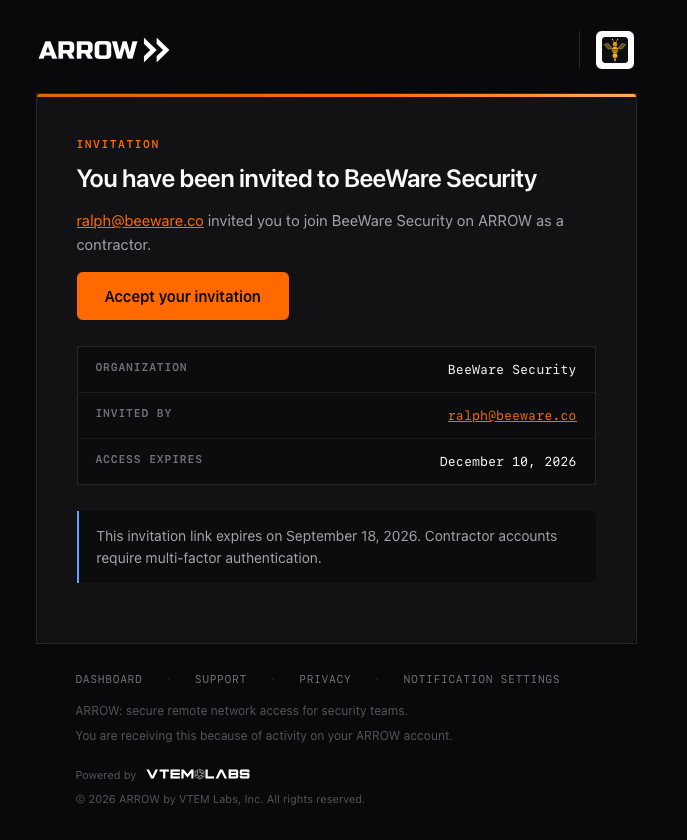
The contractor receives an invitation with the organization and access expiry. Example from the BeeWare demonstration.
The contractor receives an invitation with the organization and access expiry. Example from the BeeWare demonstration.
The invitation has its own expiry, separate from the account’s access expiry. Account time starts when you invite them, so delaying setup reduces the time left. If an invitation is missing or no longer valid, check the email address and contact support for a replacement. Do not deactivate an account just to resend an email.
Assign devices
Section titled “Assign devices”- Open Devices and find the device.
- Open its Actions menu and choose Edit Request Details.
- In Edit Device Request Details, find Assigned Consultants.
- Search by name or email, then turn on the contractor’s toggle. Leave existing users who must keep access turned on.
- Select Save Changes.
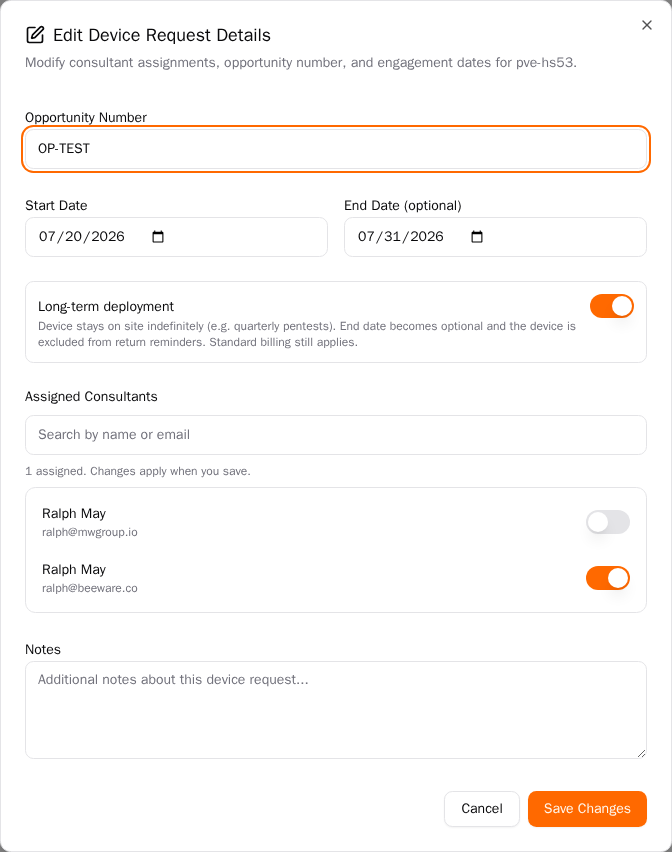
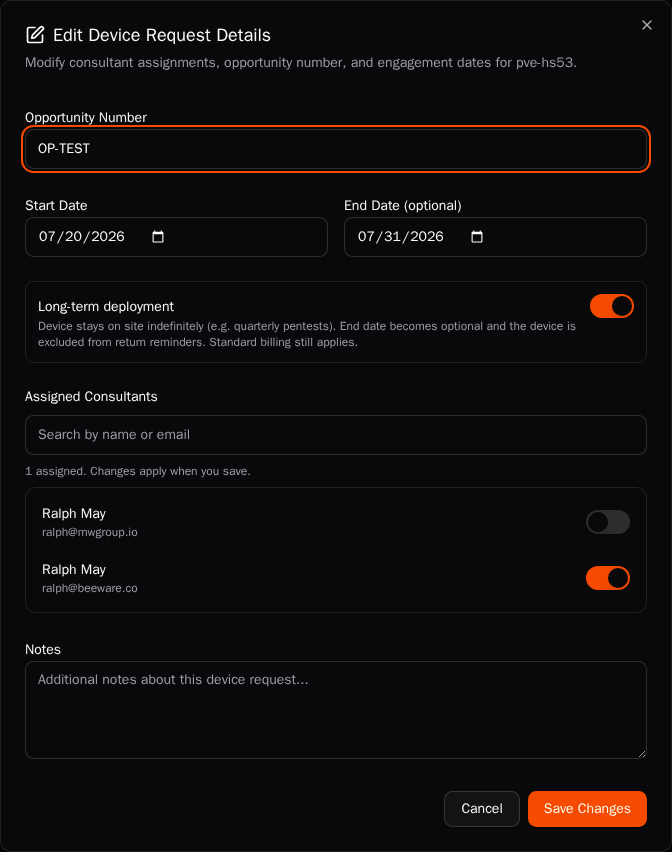
Search by name or email, turn assignments on or off, and save.
Search by name or email, turn assignments on or off, and save.
Repeat for each device they need. The assignment list includes staff as well as contractors, each listed by name and email, and the count under the search box tells you how many people are assigned. Nothing changes until you save. Removing someone from one device does not deactivate their account or remove their other assignments.
Changing assignments requires organization or device management permission. If the Assigned Consultants list says it cannot load names and emails, check your permissions with an organization administrator.
Ask the contractor to refresh Devices after you save. A contractor with no eligible assigned devices can sign in but has nothing to connect to.
Approve VPN access inside ARROW
Section titled “Approve VPN access inside ARROW”Account setup, device assignment, and VPN approval are separate steps. An active ARROW account does not prove that the person’s VPN account has been approved or that their workstation is connected.
When your VPN requires approval, ARROW notifies administrators that a VPN user needs approval. Open the notification or go directly to VPN > Team. The contractor also sees a message on Devices while approval is pending.
- Ask the contractor to sign in to your organization’s NetBird VPN with the same identity they use for ARROW.
- Open VPN > Team and select Refresh.
- Find the correct person by name and email. Use the approval status filter when needed.
- Select Approve access on their row. The row menu also offers Approve VPN access where available.
- Check the resulting status, then ask the contractor to refresh ARROW and reconnect their VPN client if needed.
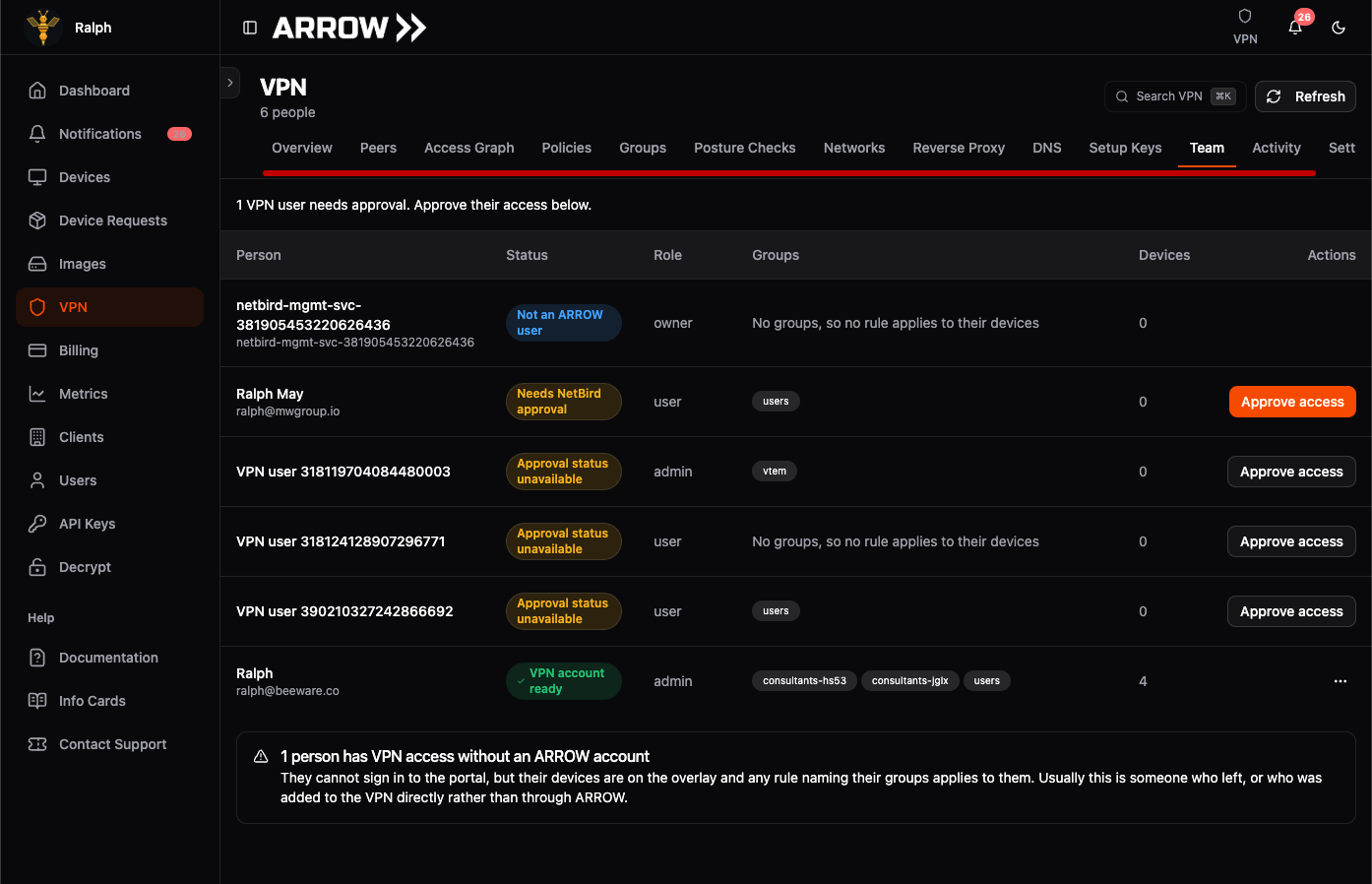
A pending VPN user appears with an approval notice and an Approve access button in ARROW. This is the BeeWare demonstration account.
A pending VPN user appears with an approval notice and an Approve access button in ARROW. This is the BeeWare demonstration account.
If the contractor reports user pending approval cannot add peers in the NetBird client, complete this approval and have them retry sign-in.
Approval stays inside ARROW. Contractors need the NetBird client on their workstation, but neither they nor your organization administrator need to use the NetBird administration site for this approval.
| Status | What to do |
|---|---|
| Needs NetBird approval | Verify the person, then approve their VPN access. |
| Approval status unavailable | Refresh and review the account. Do not assume access has been approved. |
| VPN blocked | Review why access was blocked before restoring it. |
| Invitation pending | Ask the person to finish their VPN invitation or sign-in. |
| VPN account ready | Account approval is ready. Still check the workstation connection and device assignment. |
Approval does not grant access to unassigned devices. If the VPN section or approval control is missing, ask an organization administrator with VPN management permission to perform the review.
Extend access
Section titled “Extend access”The Access expires column in Users shows the contractor’s expiry date and time. Their Actions menu contains the access controls.
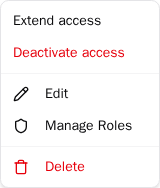
Open the three-dot Actions menu on the contractor's row to manage access.
Open the three-dot Actions menu on the contractor's row to manage access.
- Open the contractor’s Actions menu and select Extend access.
- Set Access duration (days from today).
- Check New expiry and select Extend access to save.
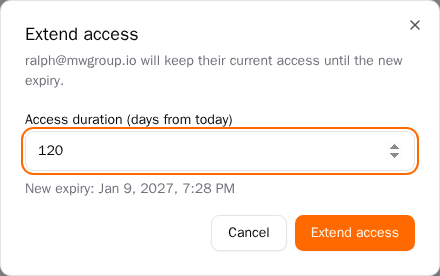
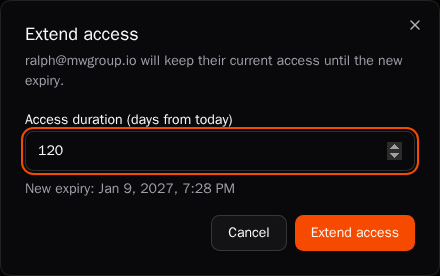
Check the proposed new expiry before saving.
Check the proposed new expiry before saving.
The number is measured from today, not added to the old expiry. For example, if ten days remain and you choose 30, the new expiry is 30 days from today. ARROW prevents an extension from ending before the current expiry. The limit is 365 days from today.
Extending an active account keeps its existing device assignments. It does not approve a pending VPN account.
Deactivate access without deleting the account
Section titled “Deactivate access without deleting the account”Use this when work stops early or someone must lose access now.
- In Users, open the contractor’s Actions menu.
- Select Deactivate access.
- Check the email in the confirmation dialog and select Deactivate access again.
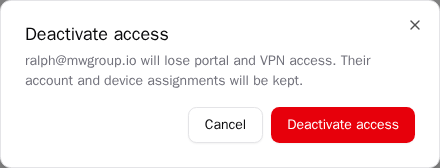
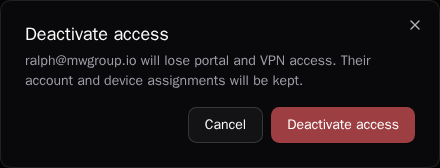
Confirm deactivation only when access should end.
Confirm deactivation only when access should end.
ARROW disables portal access and removes VPN access while keeping the account and its device assignments for later. If ARROW reports that VPN or identity cleanup is still pending, it retries automatically; do not treat that message as confirmation that every external connection has already ended.
Use Deactivate access for a reversible suspension. Accounts are never deleted from Users: the Deactivate item at the bottom of the menu is for staff accounts and ARROW refuses it for a contractor, and changing a role is not a substitute for deactivating contractor access.
Reactivate an inactive or expired account
Section titled “Reactivate an inactive or expired account”- Open the contractor’s Actions menu in Users.
- Select Reactivate access.
- Choose Access duration (days from today) and check New expiry.
- Select Reactivate access to save.
- Ask the contractor to sign in again and verify two-factor authentication. If their original setup was never completed, have them use the new invitation email.
The same account and assignments are retained. Review those assignments before restoring access, especially if the work has changed. Check VPN > Team again if the contractor reports that VPN approval is needed.
Troubleshooting
Section titled “Troubleshooting”| Problem | Check |
|---|---|
| Contractor is missing from Add User | Check Contractor support in Users and your user-management permissions. |
| Contractor sees no devices | Check the device’s Assigned Consultants, the account’s status and expiry, and whether the device is still active. |
| Assigned Consultants will not load or save | Changing assignments requires organization or device management permission. Ask an organization administrator who has it to make the change. |
| Contractor sees a VPN approval message | Review VPN > Team in ARROW and approve the correct person. |
| Approval notification is missing | Check VPN > Team directly and select Refresh. Check your notification preferences and management permissions. |
| Account is active but connections fail | Verify VPN approval, a connected NetBird workstation client, device assignment, and device availability. |
| Access has expired | Use Reactivate access with a new duration. The contractor cannot extend their own account. |
| New expiry cannot be saved | Choose a whole number from 1 to 365 that ends after the existing expiry. |
| An access change reports pending cleanup | Keep the account deactivated while ARROW retries. Contact support if it remains pending. |
For workstation setup and connection checks, see VPN Management & Access and VPN Connectivity Troubleshooting.