
Contractor Getting Started
Contractor Getting Started
Section titled “Contractor Getting Started”Your organization invites you to ARROW for a fixed period and assigns the devices you need. You finish your own account setup, protect your sign-in with two-factor authentication, and connect your workstation to the organization’s VPN.
Have your invitation email, an authenticator app, and your organization’s VPN connection details ready. Your organization administrator manages your assignments, VPN approval, and access expiry.
1. Accept your invitation
Section titled “1. Accept your invitation”- Open the ARROW contractor invitation email and select Accept your invitation.
- Check Organization, Invited email, Invitation expires, and Account access until.
- Select Set up your account.
- When ARROW shows Check your email, open the new setup email and follow the instructions to finish your account setup.
- Return to ARROW and select Continue to ARROW sign in.
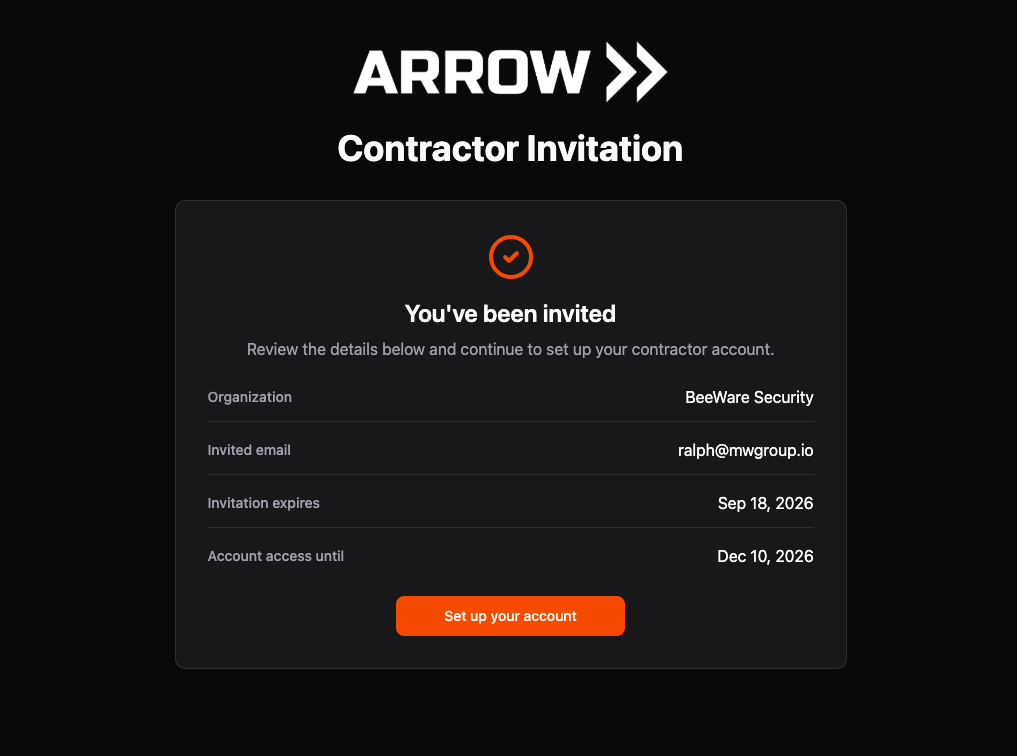
Check your organization and email before starting. The dates shown are from the BeeWare demonstration account.
Check your organization and email before starting. The dates shown are from the BeeWare demonstration account.
Your invitation expiry is the deadline for using that link. Account access until is the separate deadline for your access to ARROW. Completing setup does not restart the access period.
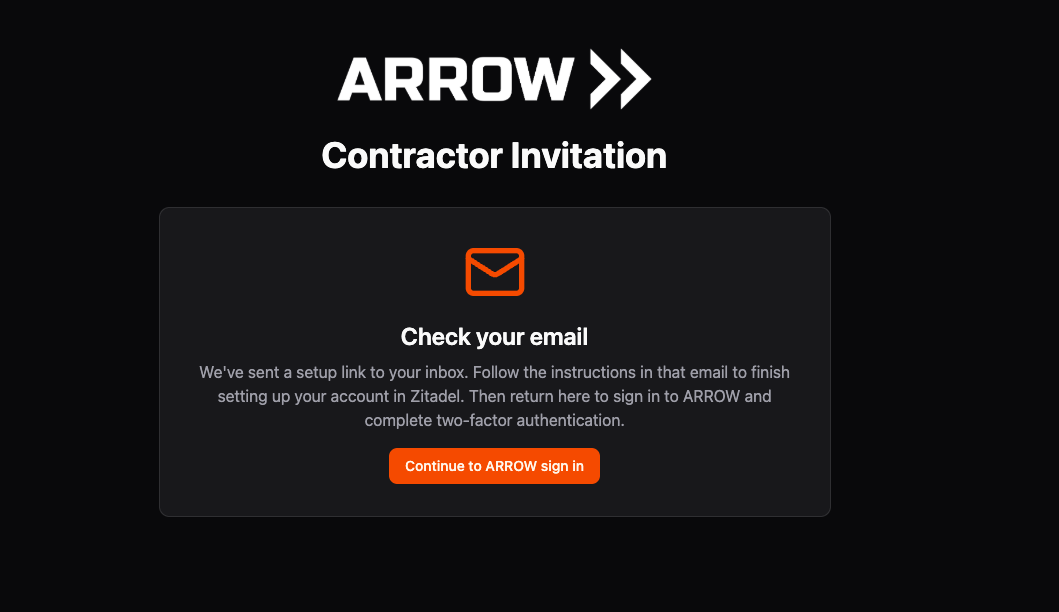
Finish the setup email first, then return here to sign in.
Finish the setup email first, then return here to sign in.
The setup email may use the wording Reset ARROW Password. Use the setup email you just requested to choose your password. If sign-in asks for E-Mail Verification, enter the code from the verification email and select Next. Use Resend Code if needed. After successful verification, select Next to continue.
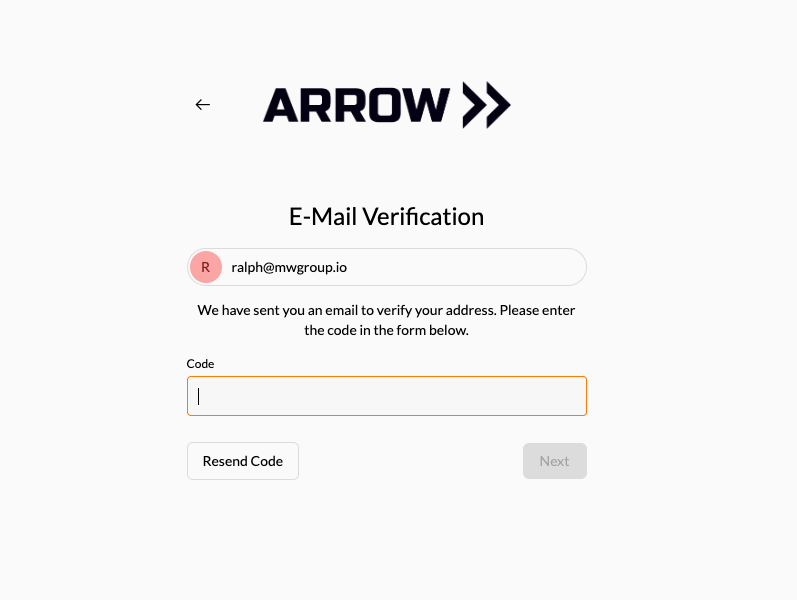
Email verification confirms your address. It is separate from authenticator setup.
Email verification confirms your address. It is separate from authenticator setup.
If the page says This link is no longer valid, ask your organization administrator for help with a new invitation. Do not forward your invitation or account setup link to anyone else.
2. Complete two-factor authentication
Section titled “2. Complete two-factor authentication”Sign in using the identity from your invitation. ARROW requires two-factor authentication before you can use the contractor console.
You may go straight from email verification to 2-Factor Verification. Open your authenticator app, add an account by scanning the QR code shown on your own screen, and enter the current code. Select Next. When 2-factor Verified appears, select Next again to continue to ARROW.
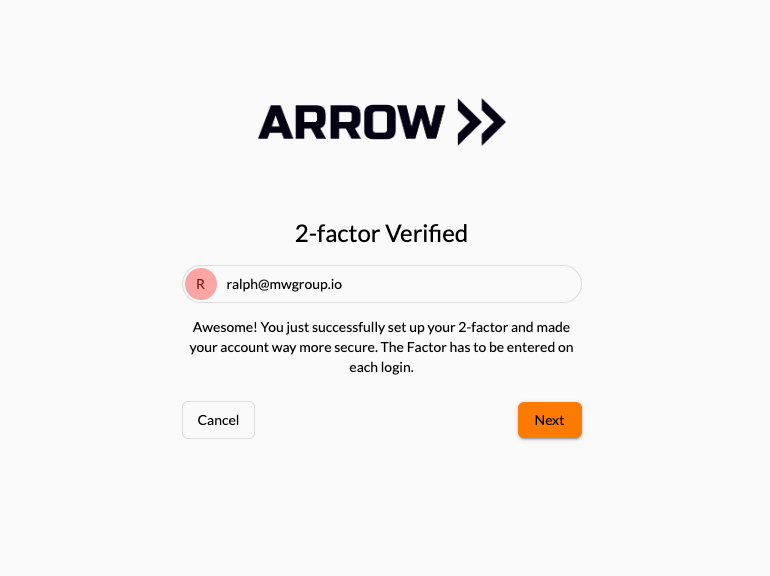
Enrollment is complete when this confirmation appears. Select Next to continue.
Enrollment is complete when this confirmation appears. Select Next to continue.
If you reach ARROW’s MFA setup page instead:
- Select Continue to sign in and set up MFA.
- Follow the identity provider’s instructions to enroll your authenticator app and verify a code.
- Return to ARROW. If the setup page remains open, select I’ve finished setup - check again.
If you use Open Zitadel account settings instead, look under Multifactor Authentication and add an Authenticator app (OTP). An empty list means you have not enrolled one yet. If no option to add one appears after reloading, contact your organization administrator.
Keep your password, authenticator codes, and recovery information private. Your administrator can manage your access without asking for them.
3. Connect your workstation to the VPN
Section titled “3. Connect your workstation to the VPN”You need the NetBird client to reach assigned devices over the private network. Signing in to the ARROW website does not connect your workstation to the VPN.
- Follow Setting Up the NetBird Client to install the client.
- Ask your organization administrator for the correct management URL and configure the client for that organization.
- Connect and sign in using the same identity as your ARROW account.
- If approval is required, ask your administrator to approve you in ARROW > VPN > Team.
- After approval, reconnect the VPN client if needed and refresh Devices in ARROW.
Use the workstation sign-in flow. Do not use a device setup key for your workstation.
ARROW shows a message above your devices if your VPN access is awaiting approval, blocked, still being enrolled, or cannot be verified. Your administrator handles approval in ARROW; you do not need access to the NetBird administration site.
If the NetBird client says Login Failed with user pending approval cannot add peers, your VPN account needs administrator approval. Ask your administrator to open ARROW > VPN > Team, approve your access, and then retry the client sign-in.
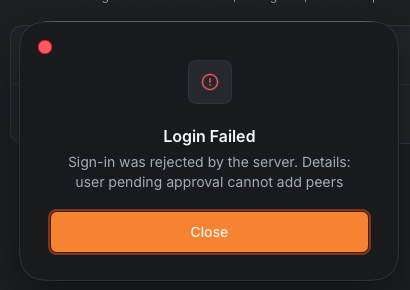
This message requires VPN approval in ARROW before you can connect.
This message requires VPN approval in ARROW before you can connect.
4. Find your assigned devices
Section titled “4. Find your assigned devices”After account setup and MFA, ARROW opens Devices. You use the same device console as the rest of your organization, with the controls that apply to your account.
- Switch between the grid and list views to browse your devices.
- Use search and filters to find the device you need.
- Select Show Details to inspect the device, including its location and available network, software, and status information.
- Check the access expiry notice above the device list.
Your console contains Devices and Account Settings, with a link to documentation. Organization-wide user administration, billing, requests, and VPN administration are managed by your organization administrator.
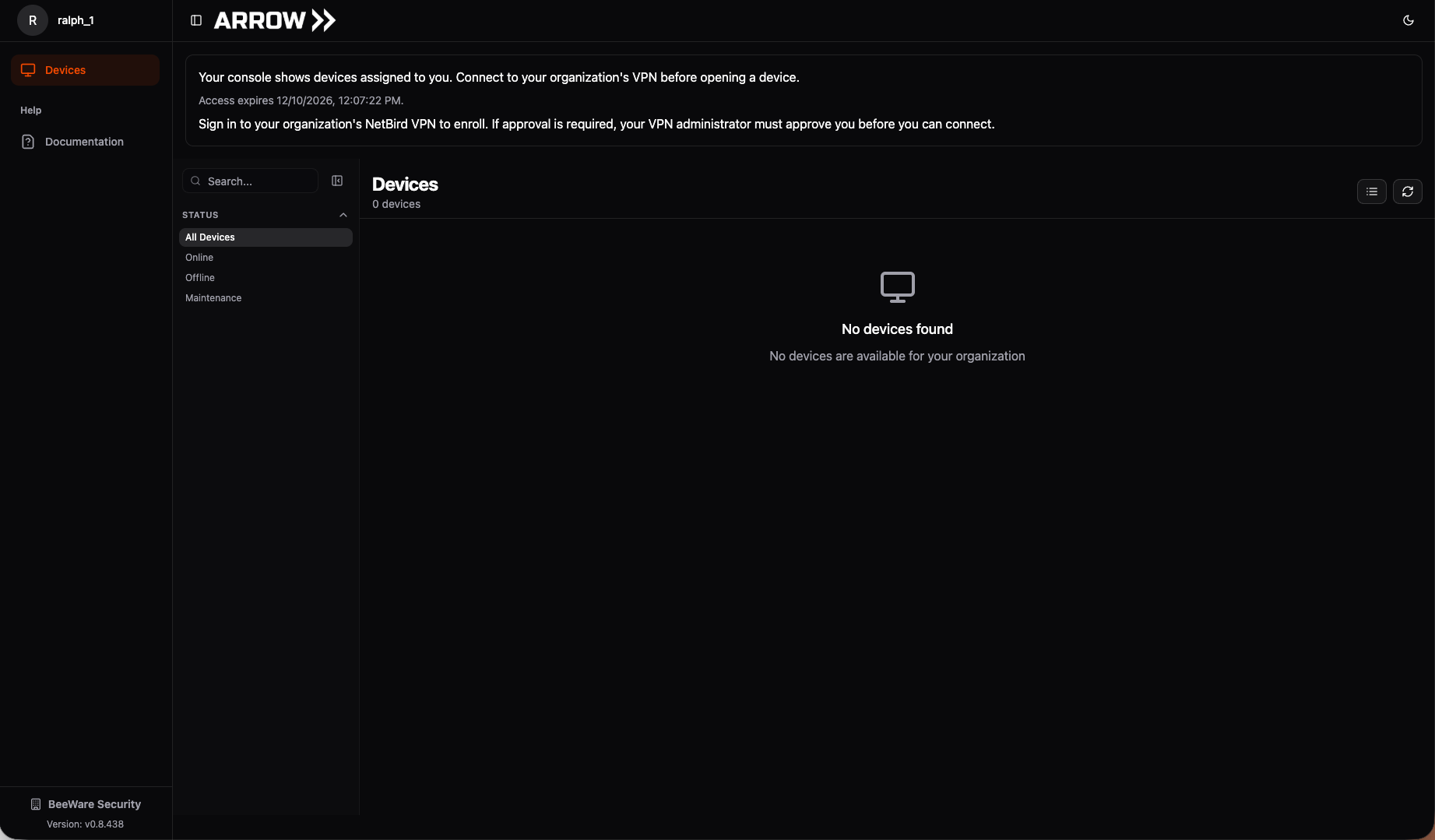
Before assignments, Devices can be empty. The notice above the list shows your access expiry and VPN guidance.
Before assignments, Devices can be empty. The notice above the list shows your access expiry and VPN guidance.
If a device is missing, ask your administrator to check its assignment. A VPN connection alone does not make unassigned devices appear.
5. Open a device
Section titled “5. Open a device”Keep the NetBird client connected, then use the device’s connection control in ARROW. Physical devices open ARROW Manager; virtual appliances open ARROW Control.
Connections provide administrative access to the assigned device. Follow your organization’s instructions for the work you perform there.
If ARROW refuses the connection, check the message before retrying. VPN approval, current account access, a current assignment, and a compatible available device are all required. Do not try to work around a denied connection with a shared administrator login. Ask your organization administrator to check the device and your access.
For the tools available after connecting, see ARROW Manager and ARROW Control.
Manage your account and access period
Section titled “Manage your account and access period”Use Account Settings for your own profile and account security. Sign out when you finish, especially on a shared workstation.
You cannot change your account’s expiry or reactivate it yourself. Contact your organization administrator before the expiry date if you need more time. They can extend access from your row’s Actions menu in Users.
If access expires or is deactivated, ask the administrator to reactivate the account if the work should continue. You can use the same account after reactivation, but you must sign in again and verify two-factor authentication. Your administrator may also need to review VPN approval.
Troubleshooting
Section titled “Troubleshooting”| What you see | What to do |
|---|---|
| No invitation email | Check spam and confirm your email address with the administrator. |
| This link is no longer valid | Ask your administrator for a replacement invitation. |
| MFA setup keeps appearing | Finish authenticator enrollment, return to ARROW, and select I’ve finished setup - check again. |
| No assigned devices | Ask the administrator to assign you under the device’s Assigned Consultants list. |
| NetBird says user pending approval cannot add peers | Ask the administrator to approve you in ARROW > VPN > Team, then retry VPN sign-in. |
| VPN access is awaiting approval | Ask the administrator to approve you in ARROW > VPN > Team, then refresh. |
| VPN access is blocked | Ask the administrator to review the block. |
| VPN status cannot be verified | Refresh and ask the administrator to check VPN > Team. |
| Your administrator must enable VPN restrictions | Your organization must finish its VPN access review before connections are available. |
| Device is listed but will not open | Check that your workstation VPN is connected and the device is available. Give your administrator the error message. |
| Location or another detail is blank | The device may not have that information recorded. Ask your administrator to check the device record. |
| Access has expired | Ask your administrator to reactivate your account with a new expiry. |
Your administrator’s instructions are in Managing Contractors.