
Team & roles
The Team screen is where you control who can reach ARROW Decrypt and what they can do. It lists everyone on the instance with their role, status, two-factor state, and last sign-in.
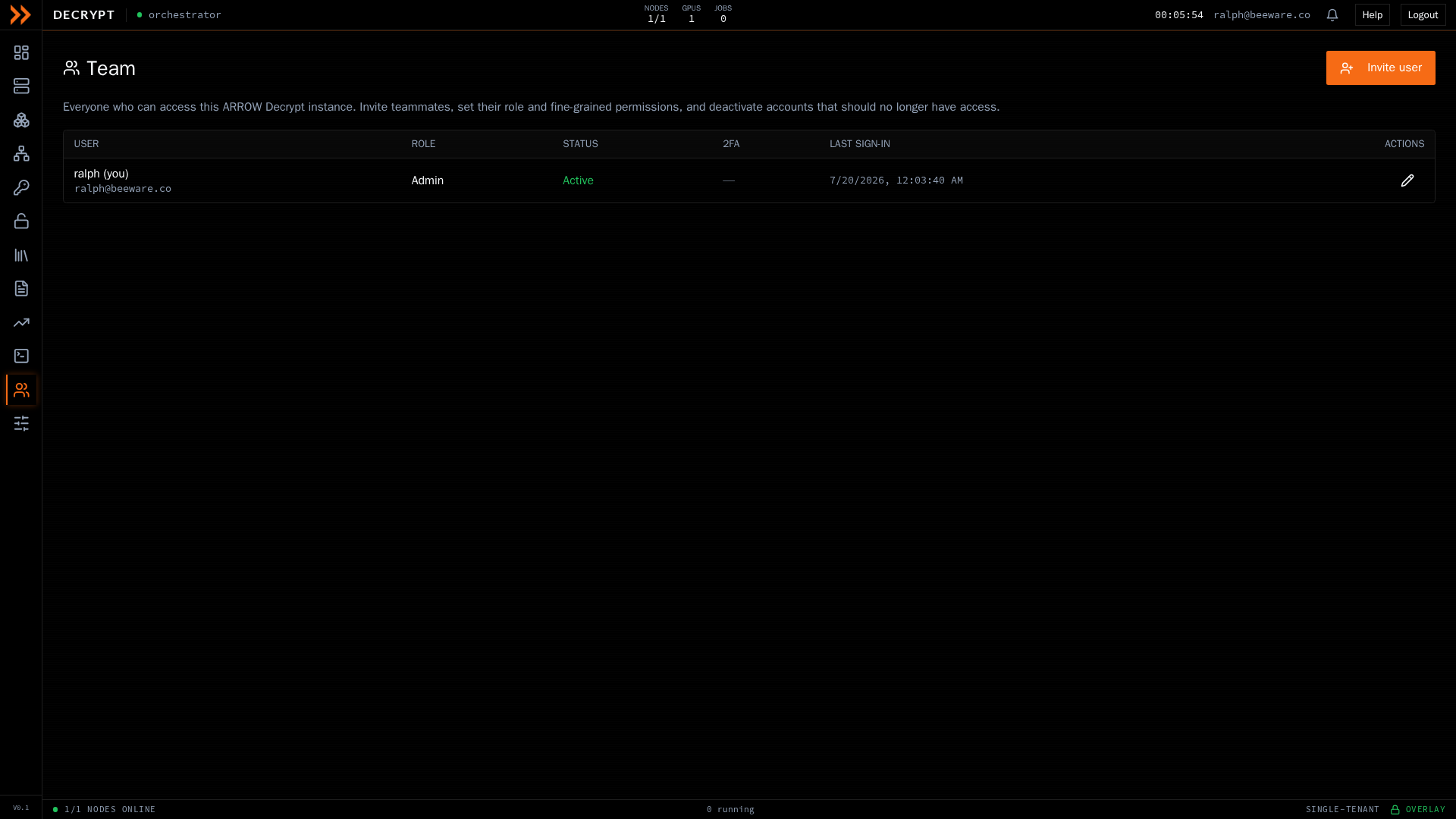
The team roster, with role, status, two-factor, and last sign-in
The team roster, with role, status, two-factor, and last sign-in
Each row shows the person’s name and email, their Role, their Status (Active, Invited, Disabled, or Awaiting approval), whether two-factor is enrolled or required, and when they last signed in. People who sign in with ARROW are marked ARROW next to their status. Your own row is marked so you can find it quickly. From a row you can edit a user, resend an invite, reset their two-factor, or deactivate and reactivate them. You cannot deactivate your own account.
Inviting a teammate
Section titled “Inviting a teammate”Click Invite user to open the invitation dialog.
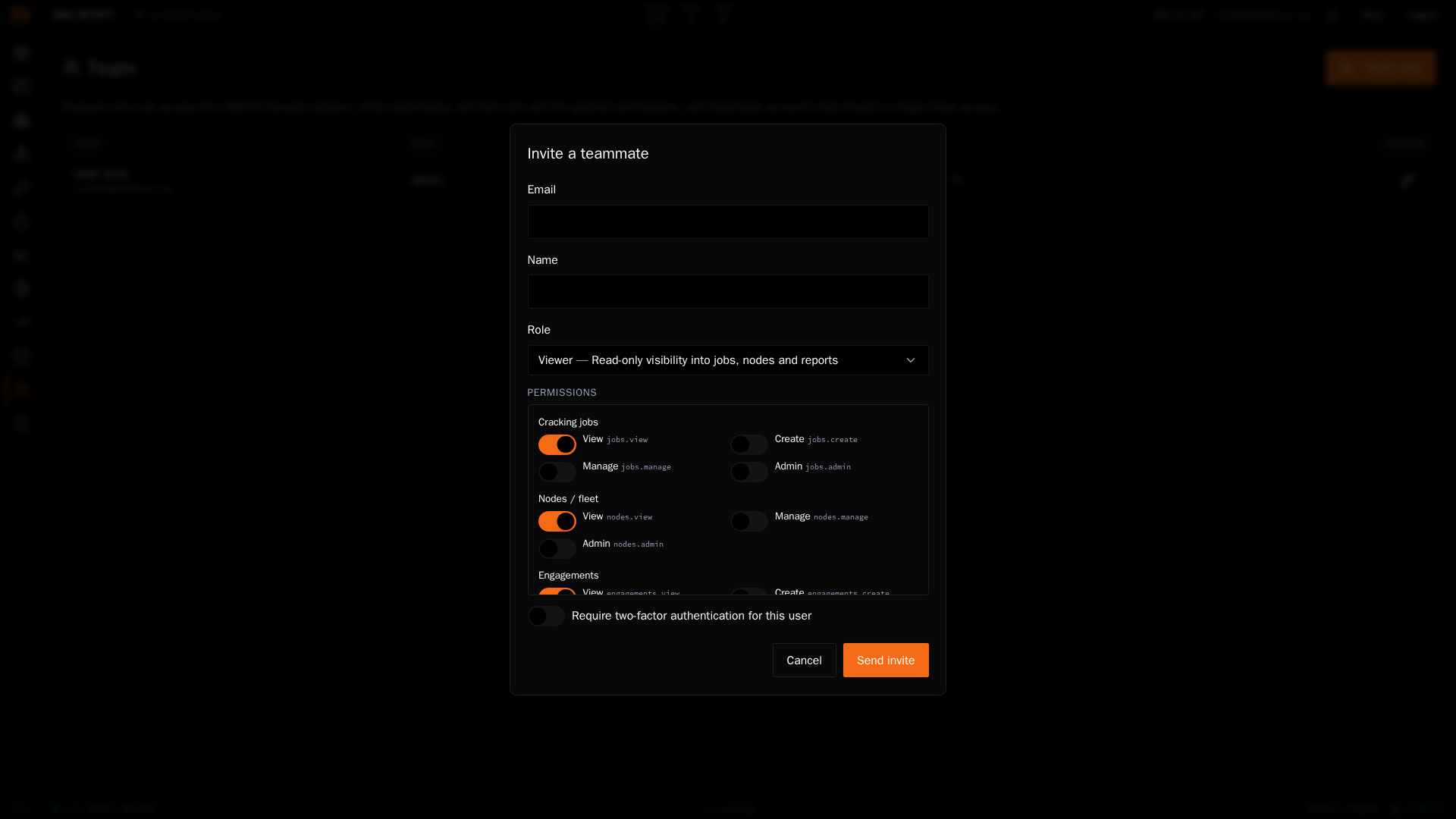
Inviting a teammate, where you pick a role, tune permissions, and require two-factor
Inviting a teammate, where you pick a role, tune permissions, and require two-factor
- Enter the person’s Email and Name.
- If your instance has Sign-in with ARROW set up, choose how the person signs in. Leave Sign in with ARROW on to let them use their existing ARROW account, with no email sent and no password set here, or turn it off to email a password invitation instead.
- Pick a Role. The role seeds a sensible set of permissions. For example, a Viewer gets read-only visibility into jobs, nodes, and reports.
- Fine-tune the Permissions if you need to. They are grouped by area (cracking jobs, nodes, engagements, and more), each with view, create, manage, and admin toggles.
- Turn on Require two-factor authentication for this user if you want to force 2FA on the account.
- Click Send invite, or Authorize when Sign in with ARROW is on.
With an emailed invitation, the person receives a link and finishes setting up their own password. See Signing In. With Sign in with ARROW, they can sign in with their ARROW account straight away.
Approving access requests
Section titled “Approving access requests”If your instance lets unknown ARROW accounts request access (see Settings), each request appears in the roster as Awaiting approval. Click Approve to let the person sign in with ARROW immediately. They start with no permissions, so edit their role and permissions right after approving. Deny access (the X next to it) turns the request down; the account stays on the team as deactivated, so the decision is on record and can be reversed later.
Editing a user
Section titled “Editing a user”Open a user from the roster to change their name, role, or permissions, or to toggle their two-factor requirement. The email cannot be changed. Changing the role re-seeds the permission toggles to that role’s defaults, which you can then adjust. If a user holds the full-access grant, the dialog says so and prompts you to pick a role to set granular permissions instead.
Most team management is limited to administrators; actions you do not have permission for are hidden.
Related documentation
Section titled “Related documentation”- Signing In - How invited users join
- Account & Security - What each user manages for themselves