
Cloud GPUs
When your own rigs cannot finish an attack in time, ARROW Decrypt can rent GPUs by the hour from vast.ai and fold them into the same job. The Cloud screen is where you watch those rentals, track what they cost, and read their logs.
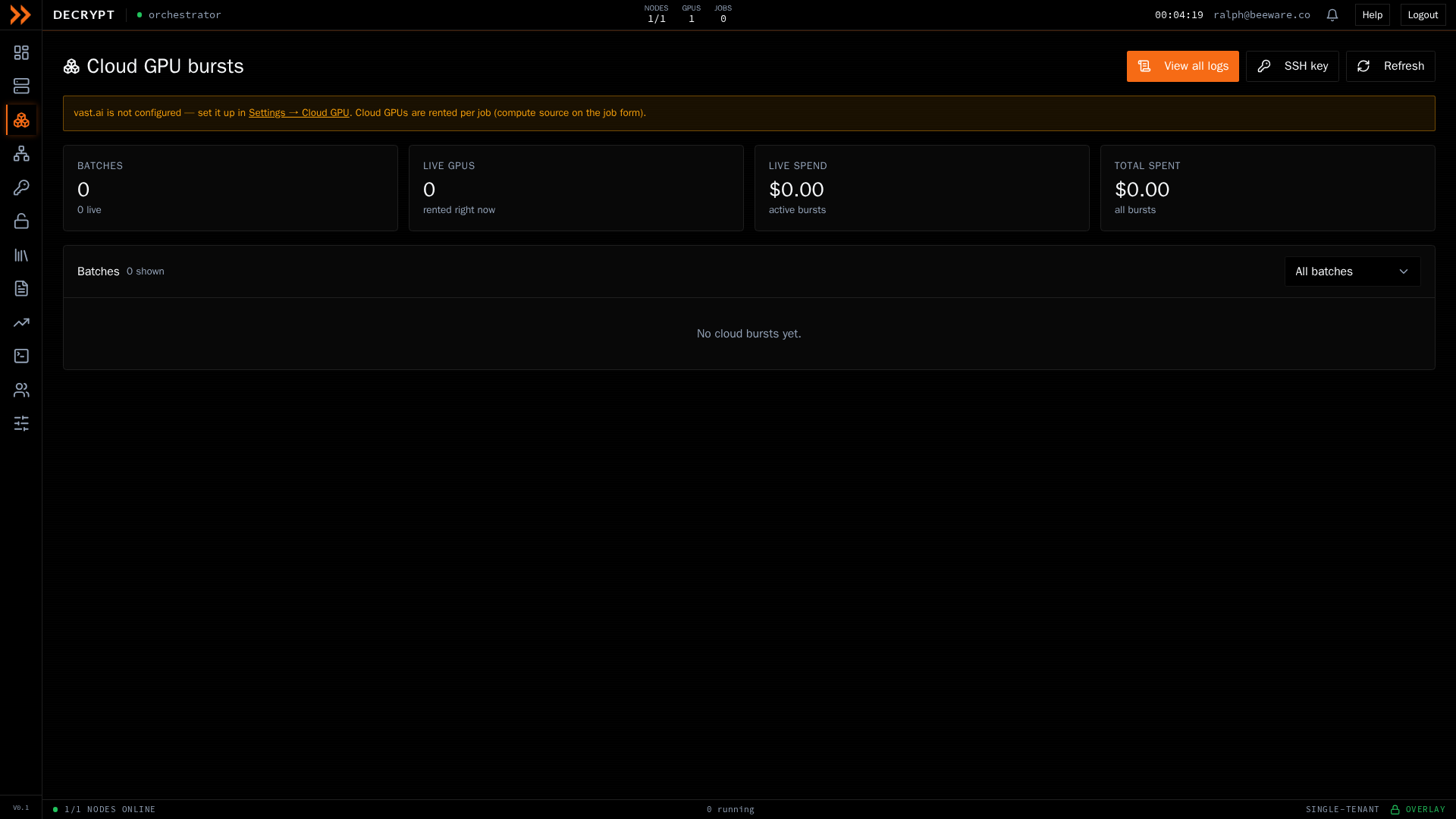
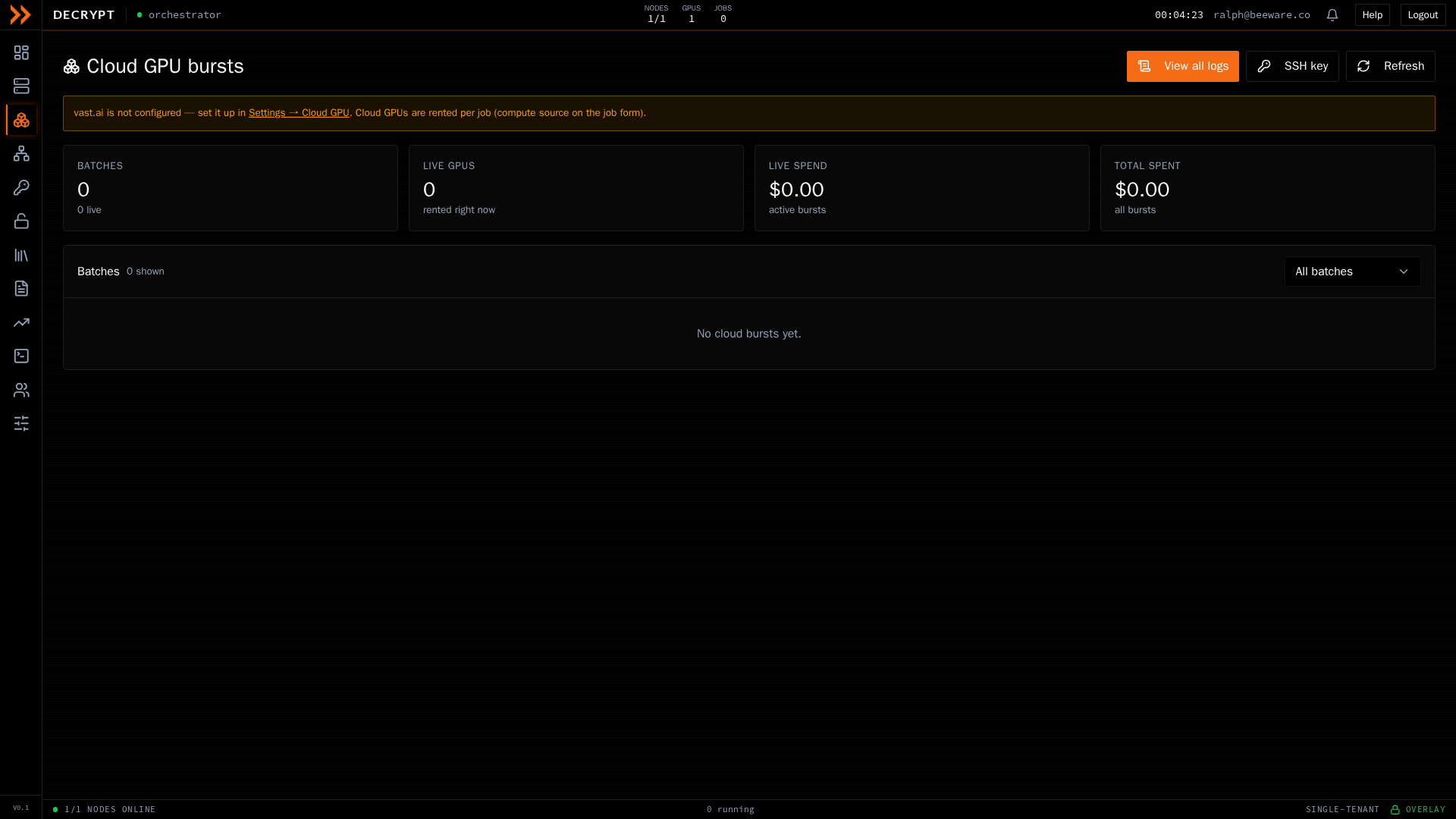
Cloud bursts, with batches, live spend, and the lifecycle of each rented host
Cloud bursts, with batches, live spend, and the lifecycle of each rented host
Before you can burst
Section titled “Before you can burst”Cloud GPUs are configured once in Settings, under Cloud GPU. Until vast.ai is set up there, the Cloud screen shows a prompt pointing you to it. You start a burst from the job builder, not from this screen. In the crack-job builder, choose Cloud or Both under Where it runs. See Crack Jobs.
Watching a burst
Section titled “Watching a burst”Summary tiles across the top show the number of batches, GPUs live right now, live spend on active bursts, and total spent across all bursts.
Click Boot times to see how long recent rentals took to become useful, phase by phase, from the image pull through joining, the host check, and wordlist delivery to the moment the host starts cracking. Each phase shows its median, its p90, and its target, which is what nine in ten recent hosts managed. A second table breaks this down by GPU model, with the time from rental to cracking, how many hosts passed or failed the host check, and the speed that model usually reaches. Until a few bursts have run, the panel reports no boot data yet.
The batches table lists every burst with its state (requesting, booting, joining, working, done, failed, or destroyed), a GPU summary, how many GPUs filled out of those requested, live node count, spend against estimate, and the current lifecycle stage. A batch that had hosts swapped out, for example because they were throttled, underperformed, or stalled while booting, is marked as replaced.
Expand any batch to see its full detail:
- A lifecycle stepper that walks from renting the GPU, through building and joining the overlay, to syncing wordlists and cracking.
- Per-node health, with the overlay address and a button to pull that node’s live agent logs.
- Wordlist sync progress per node, including transfer size and speed.
- Durable captured logs that survive the host being destroyed, so you can review a burst after it ends.
- A boot timeline for each rented host, showing the milestones it has reached measured from the moment it was rented, the phase it is in now and for how long, and its host check result. A host still in a phase past that phase’s target is marked slower than usual.
A host the provider has not started yet shows the provider’s latest status on its row, including which registry it is pulling the image from. A host that stalls pulling the image is destroyed and replaced. After the first stall, the batch rents the replacement and every later host from the same image on a second registry, a mirror on a different network, and batches you start in the next hour begin there. If four hosts stall in all, across both registries, the batch stops renting and ends as failed, with the reason at the top of its detail, because the cause is then the image or the hosts’ network rather than any one host.
For a live batch, Kill tears it down once you confirm, destroying every rented host and stopping its billing. Work in progress on those hosts is lost; passwords already recovered are kept. For a finished one, Details opens the same expanded view.
To be rid of one host without stopping the rest of the batch, use the controls on its row in the expanded view. Click replace on a host that is slow, stuck, or not doing its share: a successor is rented first, then the host is destroyed, and its unfinished work goes back to the queue for the new one. If no successor can be rented, the host is kept. Click release to destroy the host at once and stop its billing without renting another; the batch’s GPU target drops so nothing is rented in its place, and the other hosts pick up its work. Both ask you to confirm first, and the old host’s row is then marked released.
The host check
Section titled “The host check”Not every rented host performs as listed. Every host is checked as soon as it joins, before it takes any of the job’s work: all the GPUs it was rented with must be visible, and a short benchmark at the job’s hash mode must reach at least 60% of what that GPU model usually measures. Speed is only judged once three or more earlier hosts of the same model have been measured; until then it is reported but not held against the host.
A host that fails the check, or does not finish it in time, is destroyed and a replacement is rented straight away, so you stop paying for a throttled or crippled card before it has done any work. The host’s row shows the result and its measured speed against the usual speed for that GPU.
Each host’s download of the job’s wordlists from your storage bucket is judged as well. If that download runs under 30 MB/s after 45 seconds, with more than five minutes left at that speed, the host’s row shows a slow link with the speed it measured, and the host is replaced as soon as a successor is on offer within the batch’s price and spend caps. A host whose download will finish in less than about one and a half times what a replacement needs to boot and download is kept, since waiting is then quicker. At most two hosts per batch are swapped for a slow link; past that, your bucket is a likelier cause than the hosts. The exception is when other rentals have pulled from your bucket fast in the last six hours (at three times the slow host’s speed, and at least 60 MB/s): then the host’s location is the cause, so up to four are swapped. A host kept for any of these reasons, or because no successor is on offer, goes on downloading, its row says why, and it is judged again every 10 minutes.
Download speed also decides which hosts are rented. Among the offers under your price cap, a burst rents the host that costs least per GPU-hour of actual work, counting how long hosts in that location have taken to download from your bucket on earlier rentals. A cheap host that would sit idle for an hour downloading can lose to a slightly dearer one that starts cracking sooner, and a slow link is added to that history straight away, so it weighs against its location for the rentals after it.
Once a host has work, it has to start hashing. A host that still shows no hashing speed and no progress 20 minutes after it took its first piece of the job is destroyed and replaced, so it does not go on billing while doing nothing, and its row is marked never hashed. If the job has no work left for a replacement, the host is released instead, the batch’s GPU target drops so nothing is rented in its place, and its row is marked idle. If a second host in the same batch is retired as never hashed, the batch stops renting and ends as failed, with the reason at the top of its detail, because the cause is then the job (its attack, wordlists, or hash mode) rather than the hosts. Both hosts’ logs are kept under View all logs.
Adding GPUs to a running burst
Section titled “Adding GPUs to a running burst”If a burst is going slower than you need, click Add GPUs on its row while it is booting, joining, or working. Enter how many GPUs to add, and check the Spend cap ($): the new hosts must fit under it for the rest of the batch’s run time, so raise it here if the add is refused. Click Add GPUs to rent them. They use the batch’s GPU model and price cap, and each one picks up the job’s unfinished work as soon as it joins. If no GPU can be rented straight away, the batch keeps its new target and keeps trying.
Cloud node logs
Section titled “Cloud node logs”Click View all logs to open the full log console for cloud nodes. It keeps the complete boot and agent logs from every burst, even after the hosts are gone, so you can troubleshoot a rental that failed to come up.
- Filter by batch and by source (agent ring, container, or host), and type in the search box to grep the selected log.
- Pick a source from the list on the left to view its full output on the right.
- Auto-refresh keeps a live log tailing; Download saves the selected log to a file.
Related documentation
Section titled “Related documentation”- Crack Jobs - Start a burst from the job builder
- Settings - Configure vast.ai and object storage
- Wordlists - Offload lists to storage for cloud rigs