
VPN Management & Access
Overview
Section titled “Overview”Arrow uses NetBird VPN to provide secure access to your Arrow devices and virtual machines. The VPN creates encrypted tunnels between your workstations and Arrow infrastructure, enabling remote management without exposing devices to the public internet.
There are two primary methods for connecting to the VPN:
- Identity Provider (IDP) Authentication: For end-user workstations. You authenticate using your organization’s identity provider.
- Setup Token: For Arrow devices, virtual machines, and servers. These systems are placed under restrictive firewall policies and cannot communicate with other devices.
DO NOT USE SETUP TOKENS ON USER DEVICES Doing so will isolate the host under a restrictive policy, and you WILL NOT be able to access any other systems on the VPN.
NetBird Client Setup
Section titled “NetBird Client Setup”This section covers everything you need to install, connect, and verify your NetBird VPN client.
Installation Flow
Section titled “Installation Flow”flowchart TD
A[Need VPN Access] --> B{User Type?}
B -->|Desktop User| C[Install NetBird GUI]
B -->|Server/Headless| D[Install NetBird CLI]
C --> E{Auth Method?}
D --> F[Use Setup Key]
E -->|SSO/IDP| G[Connect via Browser]
E -->|Setup Key| F
G --> H[Verify Connection]
F --> H
H --> I[Access Arrow Devices]
Installation
Section titled “Installation”NetBird provides both GUI (desktop) and CLI (headless) clients. For detailed platform-specific instructions, refer to the official NetBird installation documentation.
Platform Installation Reference
Section titled “Platform Installation Reference”| Platform | Installation Method | Command/Link |
|---|---|---|
| Windows | Installer | Download from NetBird or Arrow Console VPN page |
| macOS | Install Script | curl -fsSL https://pkgs.netbird.io/install.sh | sh |
| macOS | Homebrew | brew install --cask netbirdio/tap/netbird-ui |
| Linux Desktop | Install Script | curl -fsSL https://pkgs.netbird.io/install.sh | sh |
| Linux Server | Install Script | curl -fsSL https://pkgs.netbird.io/install.sh | sh |
Quick Installation (Linux/macOS)
Section titled “Quick Installation (Linux/macOS)”curl -fsSL https://pkgs.netbird.io/install.sh | shThis installs the NetBird client with both GUI and CLI support on desktop systems.
Connecting with SSO/IDP Authentication
Section titled “Connecting with SSO/IDP Authentication”This method is for end-user workstations where you authenticate through your organization’s identity provider.
Step-by-Step Process
Section titled “Step-by-Step Process”- Log in to Arrow Console using your organization’s IDP
- Navigate to VPN Settings: Go to VPN > NetBird
- Find the Management URL for your VPN instance
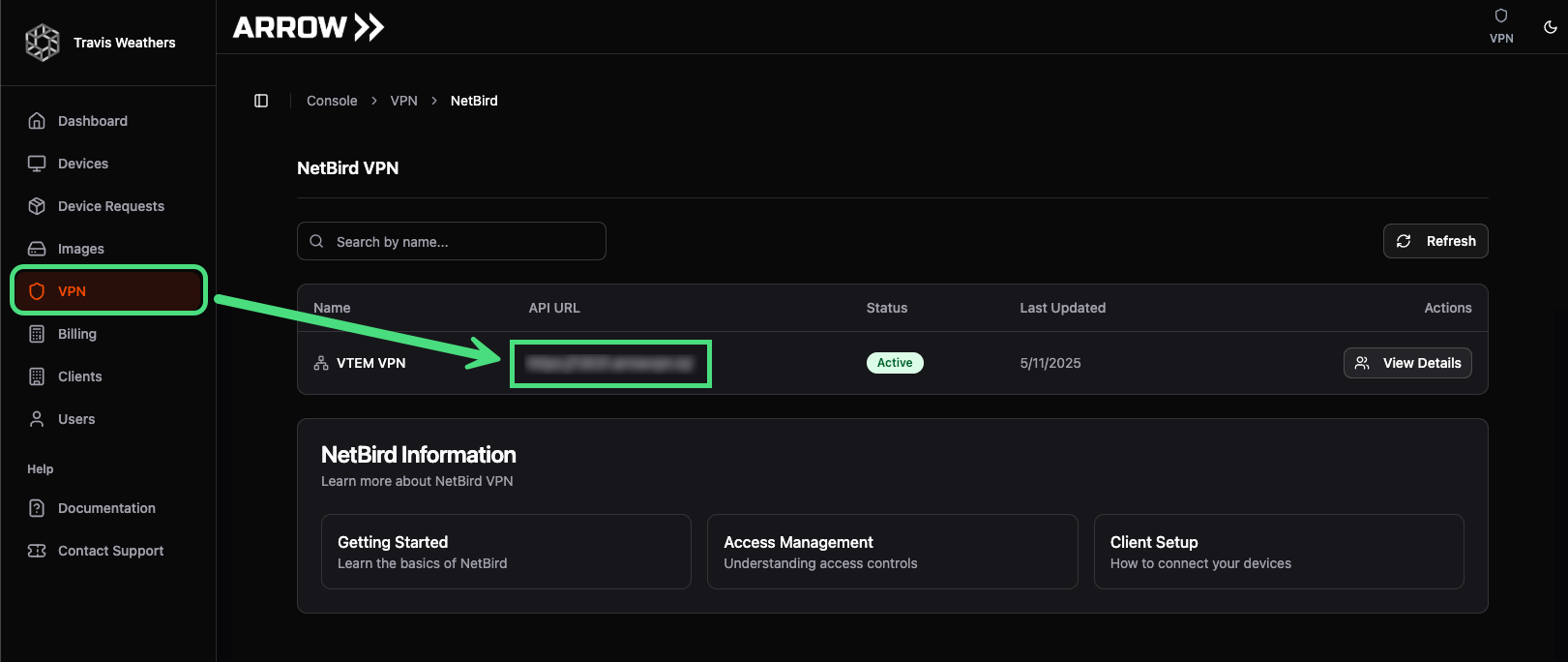 Identifying the VPN Orchestrator URL
- Open the Management URL in a new browser tab. Since you’re already authenticated, the page will provide download and setup instructions.
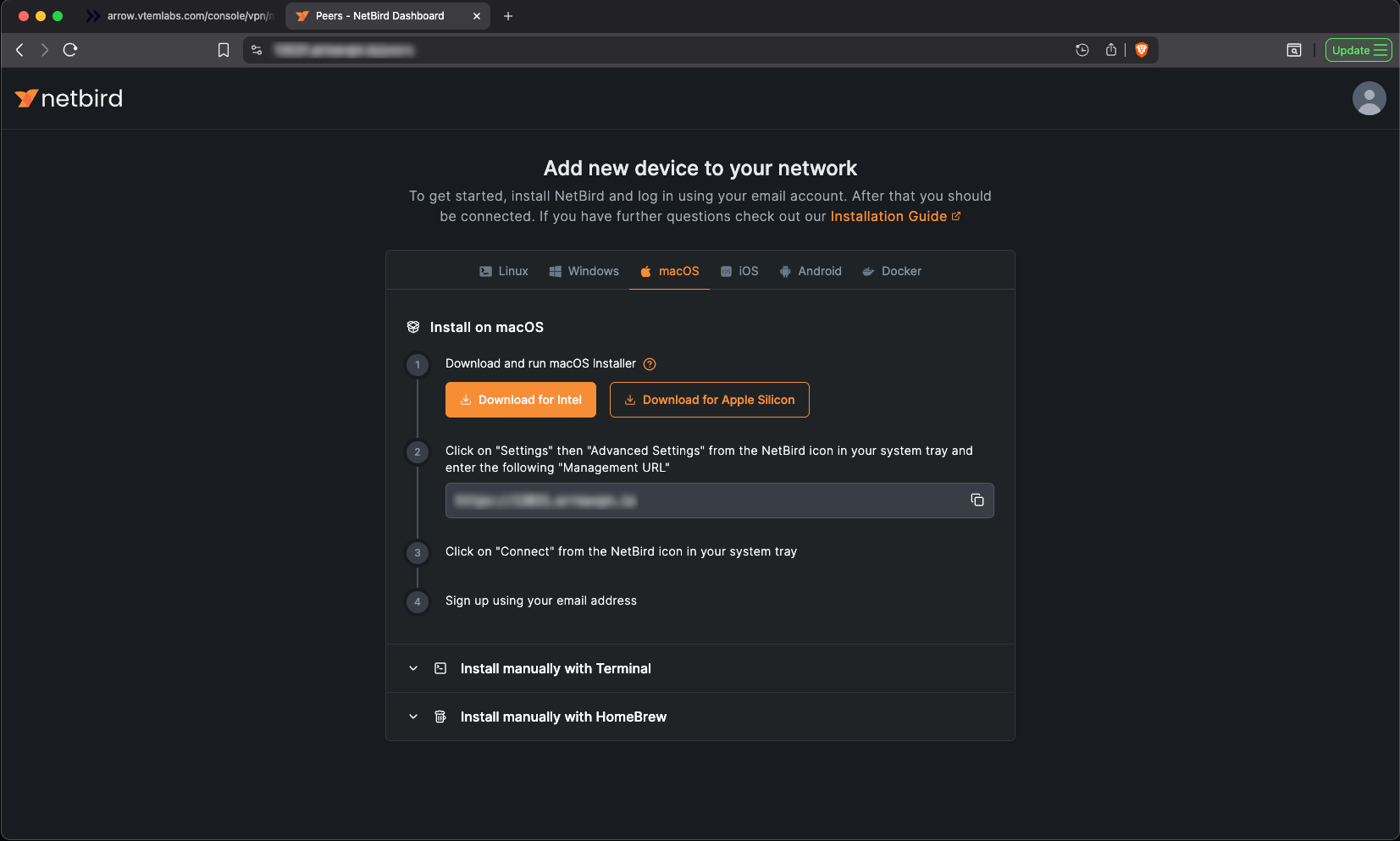 Installing the NetBird VPN Client
-
Install NetBird if not already installed (download from the page or use the installation commands above)
-
Configure the Management URL in NetBird:
- Right-click the NetBird tray icon
- Select Advanced Settings
- Set the Management URL:
https://{your-domain}:443/
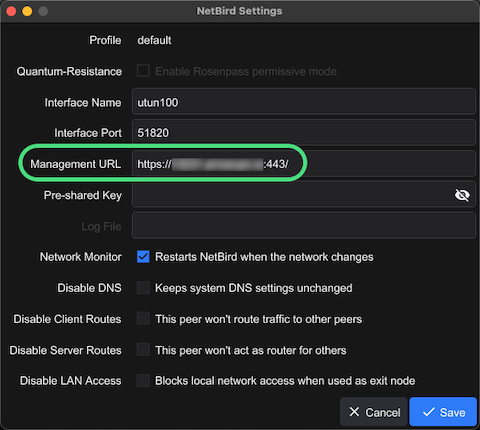 Management URL Configuration
- Click “Connect” in the NetBird client. Your browser will open for authentication.
Linux Command Line (SSO)
Section titled “Linux Command Line (SSO)”For Linux systems connecting via SSO:
netbird up --management-url https://{your-domain}:443/This launches your browser for authentication. On headless systems, copy the provided URL to authenticate in another browser.
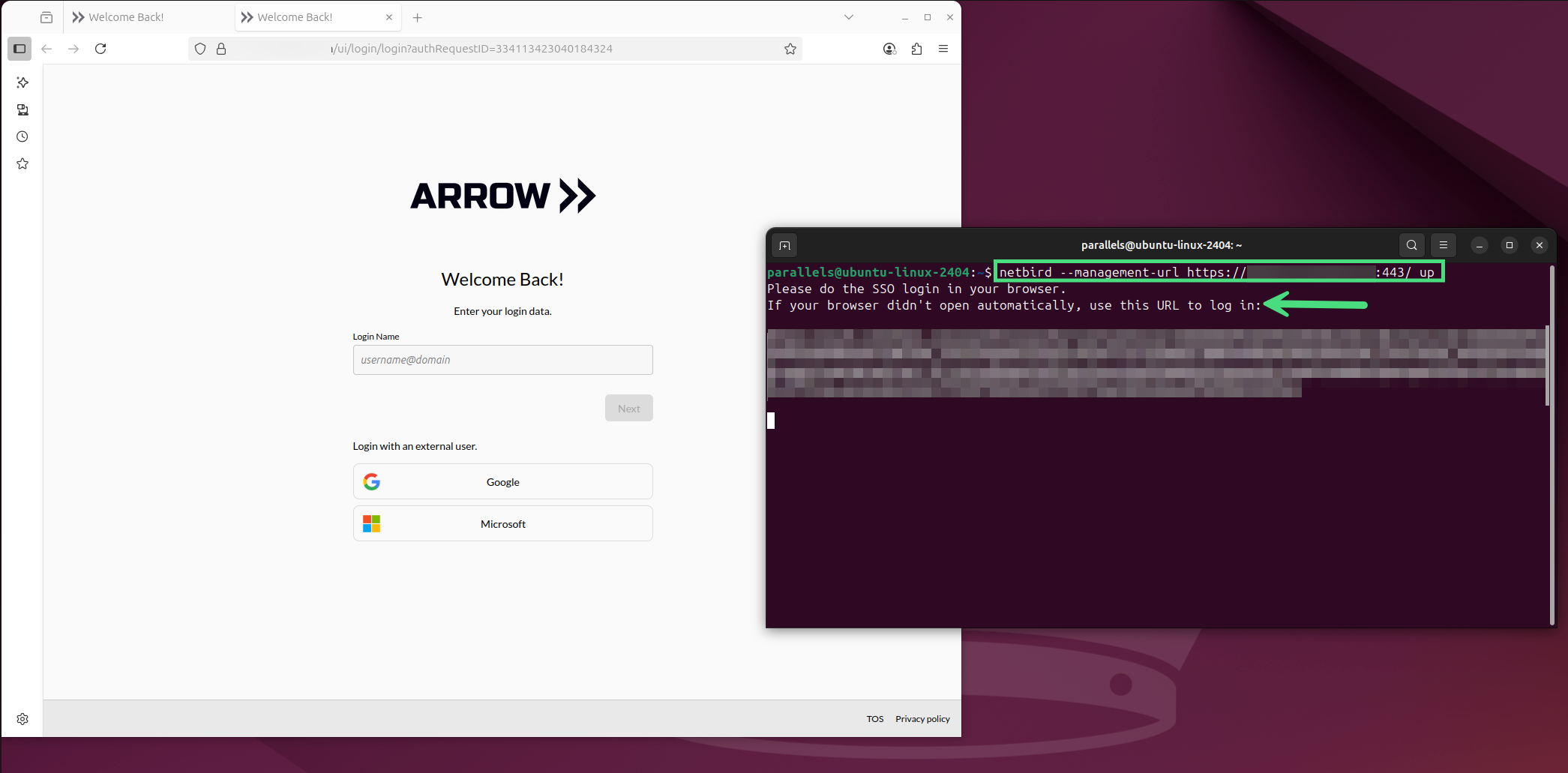 VPN User Connection CLI
Connecting with Setup Keys
Section titled “Connecting with Setup Keys”Use setup keys for servers, devices without IDP access, or automated deployments.
Warning: Do not use setup keys on user workstations. Setup keys assign devices to restrictive policies that prevent communication with other VPN peers.
When to Use Setup Keys
Section titled “When to Use Setup Keys”- Servers or infrastructure devices
- Devices that cannot authenticate via IDP
- Automated or unattended deployments
- Virtual machines and containers
Obtaining a Setup Key
Section titled “Obtaining a Setup Key”- Navigate to VPN > NetBird in the Arrow Console
- Click View Details for your VPN instance
- Click Request Setup Key
- Fill in the required information:
- Key Name: A descriptive name (e.g., “Password Recovery Server”)
- Usage Purpose: What the device will be used for
- Additional Notes: Any relevant information
- Click Create Setup Key
- Copy the key immediately - it will only be shown once
Connecting with a Setup Key
Section titled “Connecting with a Setup Key”netbird up --management-url https://{your-domain}:443/ \ --setup-key YOUR-SETUP-KEY-HERE \ --hostname {device-name}Optional Flags
Section titled “Optional Flags”| Flag | Description |
|---|---|
--disable-dns | Prevent NetBird from modifying /etc/resolv.conf |
--allow-server-ssh | Enable SSH access through the VPN |
Setup Key Expiration
Section titled “Setup Key Expiration”Setup keys expire after 7 days and can only be used once. Request a new key if yours has expired or been used.
Verifying Your Connection
Section titled “Verifying Your Connection”After connecting, verify that your VPN connection is working properly.
CLI Verification
Section titled “CLI Verification”Check your connection status:
netbird statusExpected output indicators:
| Field | Expected Value |
|---|---|
| Status | Connected |
| Management URL | Your organization’s URL |
| NetBird IP | An assigned IP address (e.g., 100.x.x.x) |
| Peers | Number of reachable peers |
GUI Verification
Section titled “GUI Verification”- Check the NetBird tray icon - a connected state shows a filled/active icon
- Click the tray icon to see connection details and peer count
Arrow Console Verification
Section titled “Arrow Console Verification”- Navigate to VPN > NetBird > View Details
- Go to the Peers tab
- Confirm your device appears with Online status
Connectivity Test
Section titled “Connectivity Test”Ping another VPN peer or Arrow device to verify network connectivity:
ping <arrow-device-vpn-ip>Client Troubleshooting
Section titled “Client Troubleshooting”Installation Issues
Section titled “Installation Issues”| Problem | Solution |
|---|---|
| Cannot download client | Check firewall/proxy settings, use alternative installation method |
| Installation fails | Verify system requirements, check permissions, consult NetBird docs |
| Service won’t start | Check system logs, ensure no conflicting VPN software |
Connection Issues
Section titled “Connection Issues”| Problem | Solution |
|---|---|
| Client won’t connect | Verify Management URL is correct, check internet connectivity |
| Authentication fails | Ensure logged into correct IDP, clear browser cache, try incognito mode |
| Setup key rejected | Verify key hasn’t expired (7 days), check for typos, ensure key hasn’t been used |
| Connected but cannot access devices | Check peer status in Arrow Console, verify group membership and policies |
Status Command Issues
Section titled “Status Command Issues”| Problem | Solution |
|---|---|
netbird status shows “Disconnected” | Restart NetBird service, verify Management URL configuration |
| No NetBird IP assigned | Check logs with netbird status --detail, verify network configuration |
| Peers show as unreachable | Check firewall rules, verify both peers are online |
Getting Help
Section titled “Getting Help”- Check the Troubleshooting section below for Arrow-specific issues
- Consult NetBird official documentation
- Contact Arrow support with output from
netbird status --detail
Viewing VPN Status
Section titled “Viewing VPN Status”Access VPN status information from the Arrow Console by navigating to VPN > NetBird.
VPN List Page
Section titled “VPN List Page”The main VPN page shows all NetBird integrations configured for your organization:
| Column | Description |
|---|---|
| Name | The integration name |
| API URL | Your VPN Management URL |
| Status | Active or Inactive |
| Last Updated | When the integration was last modified |
Click View Details to access detailed VPN information.
VPN Details Page
Section titled “VPN Details Page”The details page provides comprehensive VPN network information organized into tabs:
Overview Tab
Section titled “Overview Tab”The Overview tab displays summary statistics and connection information:
| Metric | Description |
|---|---|
| Connected Peers | Number of devices currently online on the VPN |
| Active Users | Number of users with VPN access |
| Network Routes | Number of active network routes |
| Access Policies | Number of enabled access control policies |
This tab also shows:
- Management URL: The URL for connecting NetBird clients
- Configuration Status: Whether the API is properly configured
- Created/Updated Dates: When the integration was set up
Peers Tab
Section titled “Peers Tab”View all devices connected to your VPN network:
| Column | Description |
|---|---|
| Name | Device name or hostname |
| IP Address | VPN IP address assigned to the device |
| Status | Online or Offline |
| OS | Operating system (Windows, macOS, Linux) |
| Last Seen | When the device was last connected |
Users Tab
Section titled “Users Tab”View users with access to the VPN:
| Column | Description |
|---|---|
| Name | User’s display name |
| User’s email address | |
| Role | User’s VPN role |
| Status | Active or Inactive |
Routes Tab
Section titled “Routes Tab”View network routes configured in your VPN:
| Column | Description |
|---|---|
| Name | Route identifier |
| Network | Network CIDR range |
| Description | Route description |
| Status | Enabled or Disabled |
Groups Tab
Section titled “Groups Tab”View VPN peer groups that organize devices:
| Column | Description |
|---|---|
| Name | Group name (e.g., users, pve, pvm, vm) |
| Peer Count | Number of devices in the group |
Policies Tab
Section titled “Policies Tab”View access control policies (read-only):
| Column | Description |
|---|---|
| Name | Policy name |
| Description | What the policy controls |
| Rules | Number of rules in the policy |
| Status | Enabled or Disabled |
Requesting Setup Keys
Section titled “Requesting Setup Keys”If you need to connect a custom device to the VPN (such as a password recovery server or additional infrastructure), you can request a setup key from the Arrow Console.
For detailed instructions on using setup keys, see Connecting with Setup Keys above.
When to Request a Setup Key
Section titled “When to Request a Setup Key”Request a setup key when you need to:
- Connect a server or device that cannot authenticate via IDP
- Add infrastructure devices to your VPN network
- Connect devices that will operate under machine-level (not user-level) authentication
How to Request
Section titled “How to Request”- Navigate to VPN > NetBird in the Arrow Console
- Click View Details for your VPN instance
- In the Overview tab, click Request Setup Key
- Fill in the required information:
- Key Name: A descriptive name for the device (e.g., “Password Recovery Server”)
- Usage Purpose: Describe what the device will be used for
- Additional Notes: Any other relevant information
- Click Create Setup Key
The setup key will be displayed once. Copy it immediately - you won’t be able to see it again.
Setup keys expire after 7 days and can only be used once.
VM VPN Access
Section titled “VM VPN Access”Virtual machines provisioned through Arrow are automatically connected to the VPN.
Automatic Setup
Section titled “Automatic Setup”When a VM is deployed:
- Automatic Registration: The VM is registered as a VPN peer
- Group Assignment: The VM is added to the appropriate group (pvm or vm)
- Access Configuration: Consultants assigned to the device can connect via VPN
- One-Way Access: Users can connect TO VMs, but VMs cannot initiate connections back to users
Accessing Your VM
Section titled “Accessing Your VM”After your VM is provisioned:
- Ensure your VPN client is connected
- Navigate to the device in the Arrow console
- Find the VPN hostname or IP address in the device details
- Connect using SSH, VNC, or other appropriate protocol
VM Completion Cleanup
Section titled “VM Completion Cleanup”When VMs are marked as complete, VPN resources are automatically cleaned up:
- VPN peer registration is removed
- Access groups are deleted
- Associated policies are removed
VPN Connection Flow
Section titled “VPN Connection Flow”sequenceDiagram
participant User as Your Workstation
participant IDP as Identity Provider
participant NB as NetBird Client
participant VPN as VPN Server
participant Arrow as Arrow Device
User->>NB: Start NetBird
NB->>VPN: Request Connection
VPN->>IDP: Redirect for Auth
IDP->>User: Login Prompt
User->>IDP: Authenticate
IDP->>VPN: Auth Token
VPN->>NB: Connection Established
NB->>User: VPN Connected
User->>Arrow: Access via VPN Tunnel
Status Indicators
Section titled “Status Indicators”| Status | Meaning |
|---|---|
| Online | Device is connected and reachable |
| Offline | Device is not currently connected |
| Active | Integration/Policy is enabled |
| Inactive | Integration/Policy is disabled |
| Enabled | Route/Policy is in effect |
| Disabled | Route/Policy is not currently applied |
Troubleshooting
Section titled “Troubleshooting”For client-specific installation and connection issues, see Client Troubleshooting in the NetBird Client Setup section above.
Cannot Connect to VPN
Section titled “Cannot Connect to VPN”- Verify Management URL: Ensure you’re using the correct Management URL from the Arrow Console
- Check Authentication: Make sure you’re logged into your organization’s IDP
- Firewall Issues: Ensure outbound connections to the Management URL are allowed
- Client Version: Update to the latest NetBird client
Device Shows Offline
Section titled “Device Shows Offline”- Check VPN Service: Ensure NetBird is running on the device
- Network Connectivity: Verify the device has internet access
- Refresh Status: Use the Refresh button in the Arrow Console
Cannot Access Arrow Device via VPN
Section titled “Cannot Access Arrow Device via VPN”- Check Device Status: Verify the device shows as Online in the Peers tab
- Verify Group Membership: Ensure you’re in the correct group with access
- Check Policies: Verify access policies allow your connection
- Device VPN Status: Check if the device’s VPN service is running
Related Documentation
Section titled “Related Documentation”- Network Access Control - Understanding automatic access control
- Authentication - User authentication and identity management
- Device Management - Managing devices that connect to VPN
- Arrow Manager Network Settings - On-device network status
- NetBird Official Documentation - Detailed NetBird client documentation