
Device Requests
Overview
Section titled “Overview”The ARROW Device Requests system enables you to request physical devices and virtual appliances for your engagements. This guide walks you through the entire process from adding clients to tracking your requests.
What You Can Request
Section titled “What You Can Request”- Physical Hardware Devices: Custom Linux-based computers with cellular failover and VPN connectivity
- Virtual Appliances: Downloadable VM images (OVA, QCOW2) for various virtualization platforms
- Wireless Testing Equipment: Optional ALFA wireless cards for wireless penetration testing
Export Compliance
Section titled “Export Compliance”All device requests are subject to U.S. export control regulations and VTEM Labs’ export policies. Certain countries may require additional review or may be prohibited from receiving ARROW products. Contact support for details on country-specific restrictions and compliance requirements.
Important Requests to restricted countries may incur legal review fees and extended processing times.
Prerequisites
Section titled “Prerequisites”Adding Clients
Section titled “Adding Clients”Before requesting a device, you must add your client to the ARROW platform.
Step 1: Navigate to the Clients tab in the sidebar.
Step 2: Click the + Add Client button.
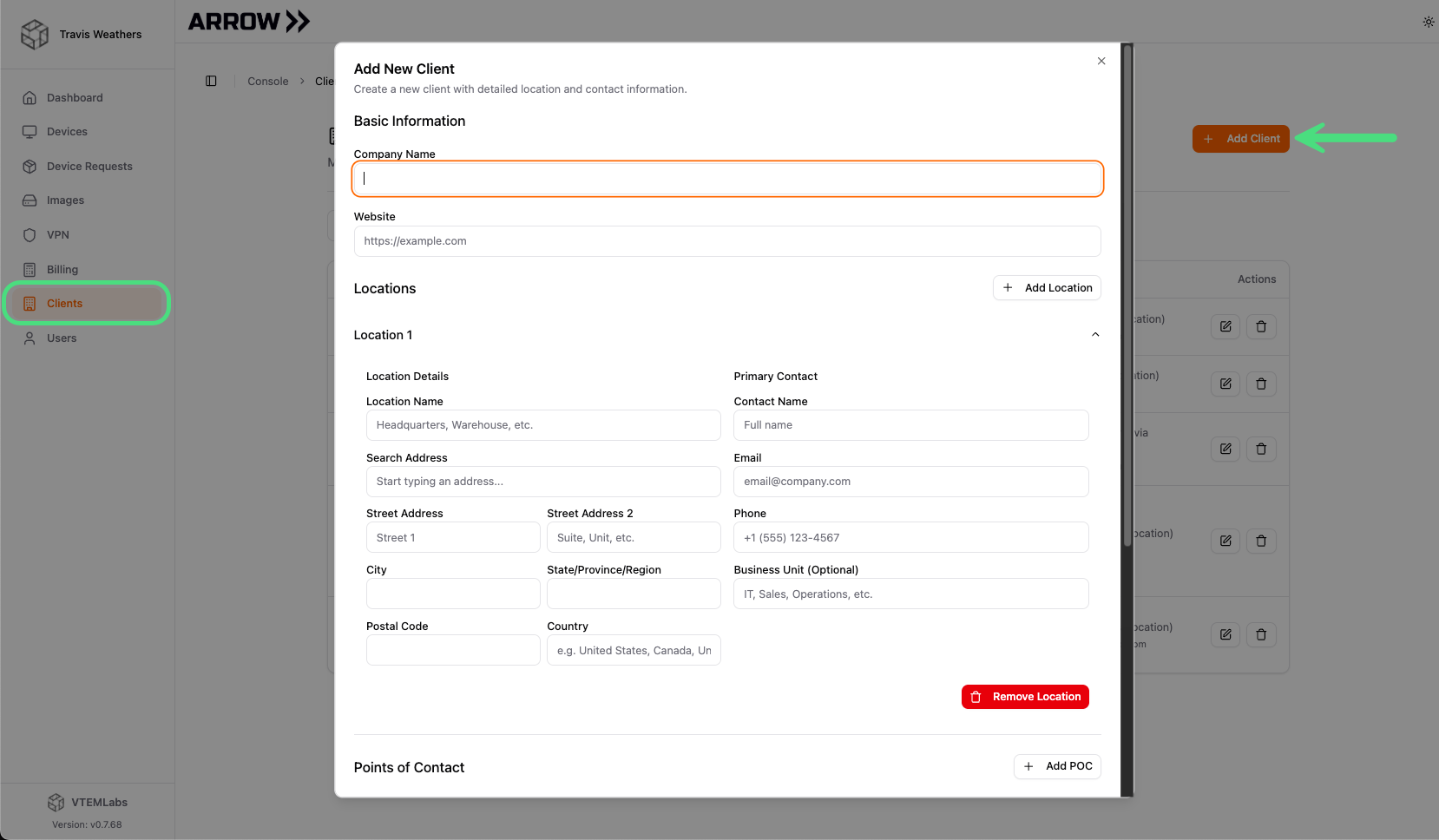 Adding a client to ARROW
Step 3: Fill in the client details:
- Company name and industry
- Logo (optional, for visual identification in the portal)
- Primary contact information
Step 4: Click Save to create the client.
Note Only Admins and Managers can manage clients in the ARROW platform.
Adding Locations
Section titled “Adding Locations”Each client can have multiple delivery locations. This is useful when devices need to be shipped to different offices or project sites.
Step 1: Open the client record and navigate to Locations.
Step 2: Click + Add Location and enter:
- Location name (e.g., “NYC Headquarters”, “Chicago Branch”)
- Full shipping address
- Contact information for the location
Adding Points of Contact
Section titled “Adding Points of Contact”Accurate contact information ensures smooth delivery of your devices.
Important Provide accurate contact information in the Points of Contact section. This is required by UPS and FedEx for certain delivery methods and locations (e.g., international shipments). Failure to provide this data may result in shipping delays, request rejection, or a device replacement fee.
PoC Dialog Window
Creating a Device Request
Section titled “Creating a Device Request”Navigate to the Device Requests tab in the sidebar and click + New Request.
Physical Device Requests
Section titled “Physical Device Requests”When requesting physical devices, you can request one device per submission.
Required Fields:
| Field | Description |
|---|---|
| Device Type | Select “Physical Device” |
| Device Specification | ARROW or OBSIDIAN |
| Include Wireless Card | Whether to include an ALFA wireless card |
| Client | Select from your added clients |
| Delivery Location | Select the shipping destination |
| Request Period | Start and end dates for your engagement |
| Images | VM images to include in the App Library |
| Consultants | Team members assigned to the engagement |
Which device should I choose?
- ARROW - Full-featured device with 16GB RAM, 512GB storage, dual ethernet, and active cooling. Best for extended deployments.
- OBSIDIAN - Ultra-compact fanless device with 8GB RAM, 256GB storage. Best for discrete/portable use.
See the complete specifications and comparison to help you decide.
Optional Fields:
| Field | Description |
|---|---|
| Opportunity Number | Your internal project tracking reference |
| Notes | Special instructions or requirements for VTEM Labs |
Important Physical device requests must be submitted at least 72 business hours prior to the project start date. Last-minute requests may incur an additional $100 logistics charge for Next Day Air Early delivery. Last-minute device requests made after 1 PM Eastern will ship the next business day (no exceptions).
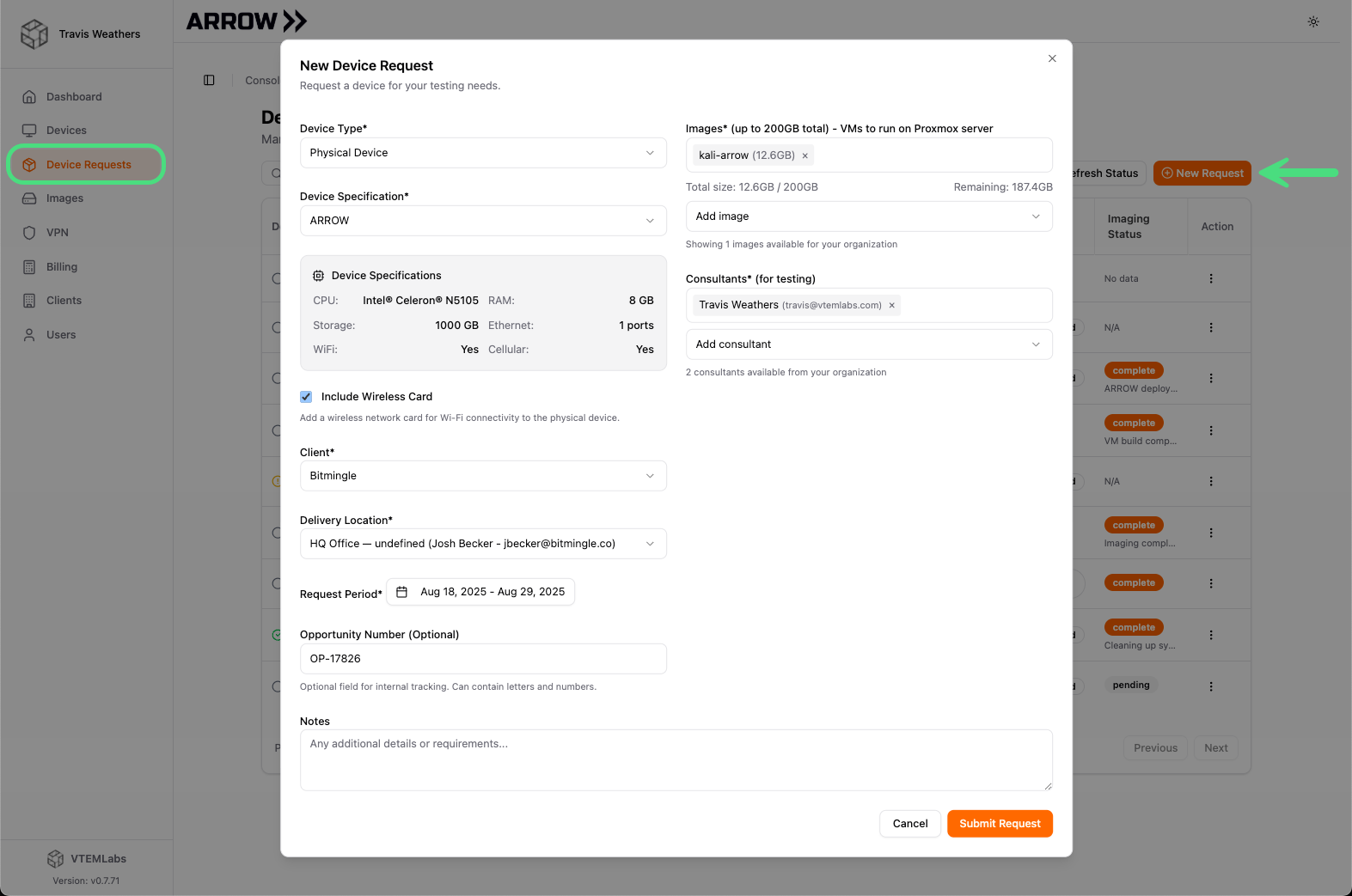 Requesting a Physical ARROW Device
What Happens After Submission:
- Your request enters the VTEM Labs queue
- Once approved, your device is prepared and configured
- Shipping labels are generated and the device is packaged
- You receive an email with tracking information
- Tracking is also available in the Device Request page
Virtual Appliance Requests
Section titled “Virtual Appliance Requests”Virtual appliances are ideal when physical shipping isn’t possible. You can request up to 10 VMs per submission.
Required Fields:
| Field | Description |
|---|---|
| Device Type | Select “Virtual Machine” |
| Number of VMs | How many virtual machines you need (1-10) |
| VM Names | Unique name for each VM (e.g., “US East”, “NYC HQ”) |
| VM Type | VMware (OVA), VirtualBox (OVA), or QEMU/KVM (QCOW2) |
| Client | Select from your added clients |
| Request Period | Start and end dates for your engagement |
| Images | VM images to include in the App Library |
| Consultants | Team members assigned to the engagement |
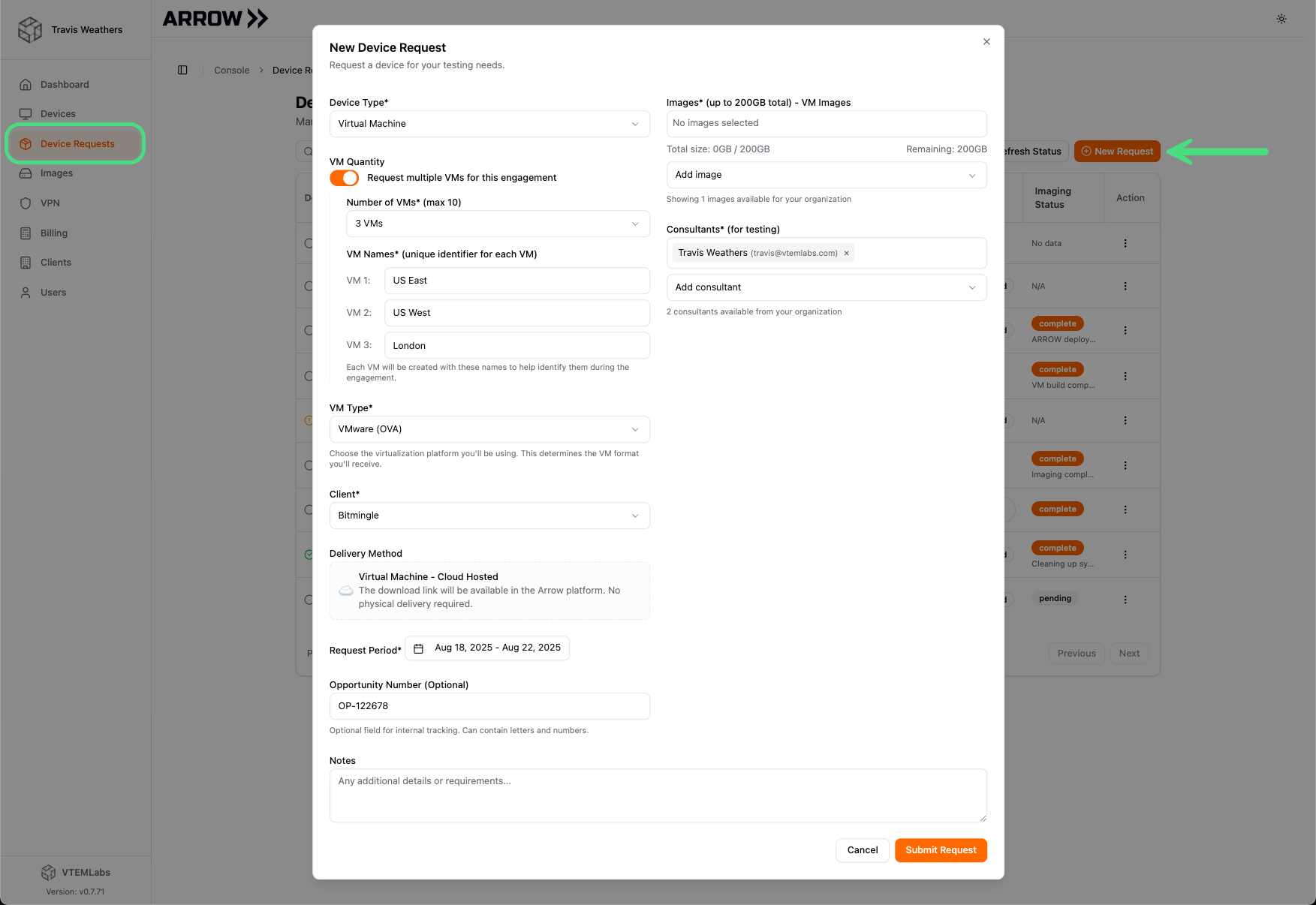 Requesting a Virtual Appliance
What Happens After Submission:
- Your request enters the VTEM Labs queue
- Once approved, VM imaging begins automatically
- Status changes to “fulfilled” when VMs are ready
- Download links become available in the portal
Tracking Your Requests
Section titled “Tracking Your Requests”Viewing Request Status
Section titled “Viewing Request Status”All your device requests appear in the Device Requests page. Each request shows:
- Request status (pending, approved, fulfilled, etc.)
- Client and location information
- Request dates
- Assigned consultants
- Tracking information (for physical devices)
Understanding Status Indicators
Section titled “Understanding Status Indicators”| Status | What It Means |
|---|---|
| Pending | Request submitted, awaiting approval |
| Approved | Request approved, device being prepared |
| Shipping | Label created, device ready for pickup |
| In Transit | Device is with the carrier |
| Fulfilled | Device delivered or VM ready for download |
Request Lifecycle Workflow
Section titled “Request Lifecycle Workflow”The following diagram illustrates the complete request lifecycle from submission to fulfillment:
flowchart TD
    subgraph Submission
        A[Submit Request] --> B{Request Type}
    end

    subgraph Review
        B -->|Physical Device| C[Pending Approval]
        B -->|Virtual Appliance| C
        C --> D{Approved?}
        D -->|No| E[Request Rejected]
    end

    subgraph Physical["Physical Device Flow"]
        D -->|Yes - Physical| F[Device Preparation]
        F --> G[Shipping Label Created]
        G --> H[In Transit]
        H --> I[Delivered]
    end

    subgraph Virtual["Virtual Appliance Flow"]
        D -->|Yes - Virtual| J[VM Imaging]
        J --> K[Ready for Download]
    end

    I --> L[Fulfilled]
    K --> L

    style A fill:#4f46e5,color:#fff
    style L fill:#22c55e,color:#fff
    style E fill:#ef4444,color:#fff
Workflow Summary:
- Submission: User submits a device request (physical or virtual)
- Review: Request enters the VTEM Labs queue for approval
- Preparation: Once approved, device preparation or VM imaging begins
- Delivery/Access: Physical devices ship via carrier; virtual appliances become available for download
- Fulfillment: Request marked complete when device is delivered or VM is ready
Accessing Tracking Information
Section titled “Accessing Tracking Information”For physical devices, tracking information is available in two places:
From Device Requests:
- Navigate to Device Requests
- Click on the request to open details
- View tracking number and carrier link
From Email:
- You’ll receive an email with tracking details when the device ships
Downloading Virtual Machines
Section titled “Downloading Virtual Machines”Once your VM request is fulfilled, download links are available in two locations:
From Device Request Details:
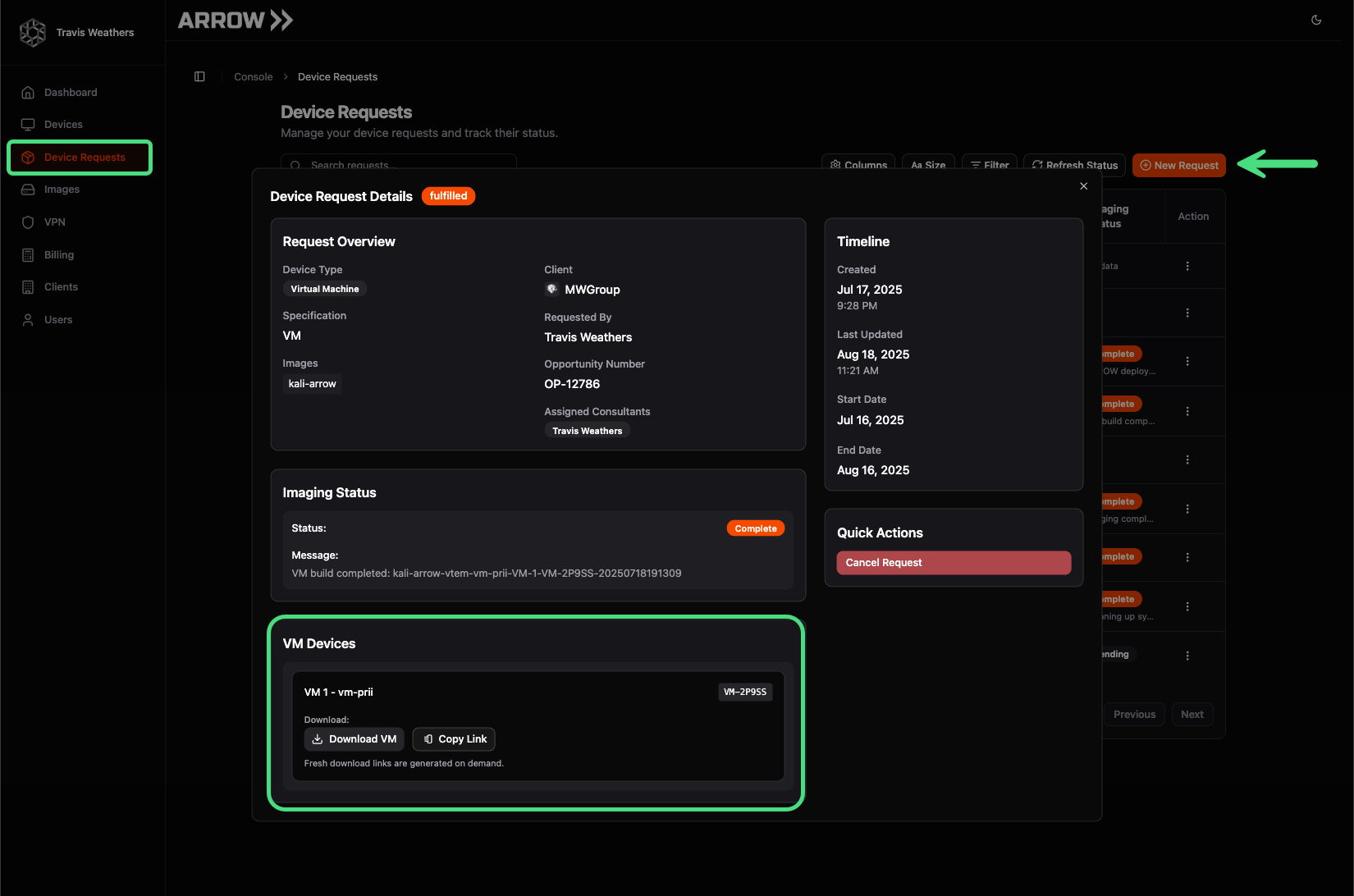 Virtual Appliance Download - Device Requests > Device Request Details
From the Devices Page:
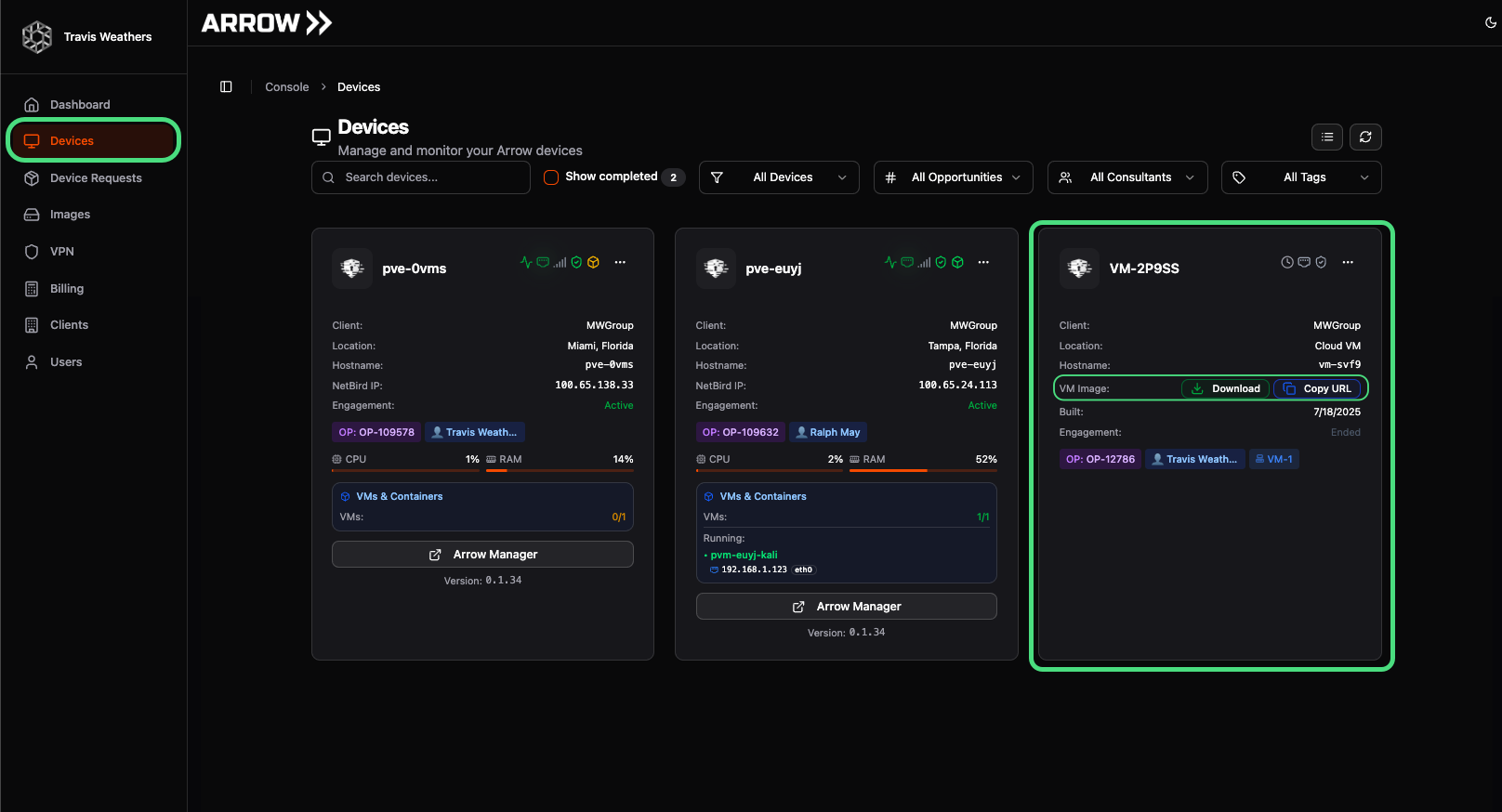 Virtual Appliance Download - Devices View
Managing Active Requests
Section titled “Managing Active Requests”Extending or Shortening Dates
Section titled “Extending or Shortening Dates”If your project timeline changes, you can adjust the request dates at any time.
Step 1: Navigate to the Devices page.
Step 2: Find your device and click the […] menu.
Step 3: Select Edit Request Details.
Step 4: Update the start or end dates as needed.
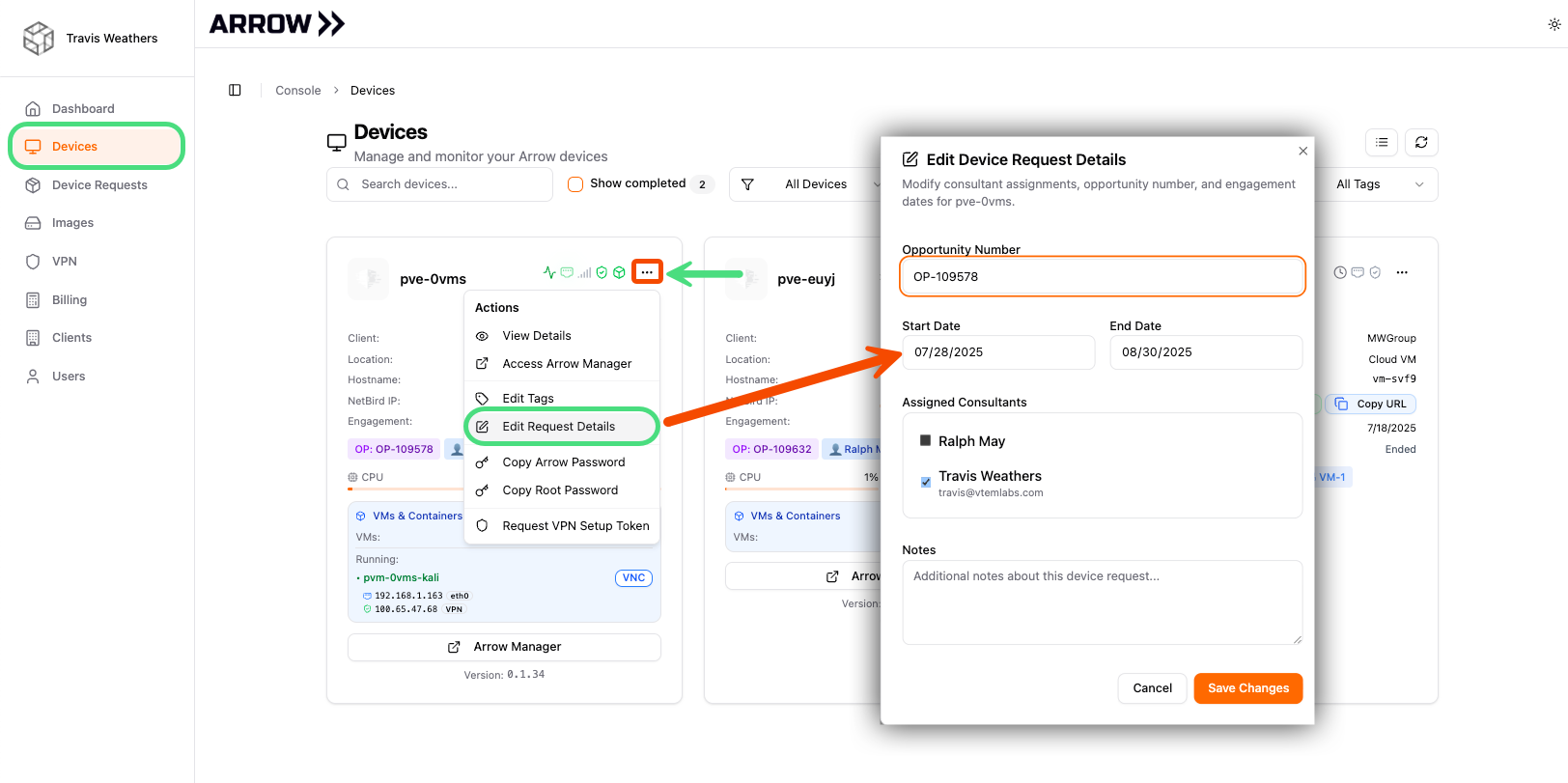 Changing Request Dates
Editing Request Details
Section titled “Editing Request Details”You can also update:
- Assigned consultants
- Opportunity number
- Notes
Canceling Requests
Section titled “Canceling Requests”To cancel a pending request, contact the VTEM Labs support team. Once a device has been shipped, cancellation may not be possible.
Common Scenarios
Section titled “Common Scenarios”Multiple Devices for One Engagement
Section titled “Multiple Devices for One Engagement”Submit separate physical device requests for each device needed. For virtual appliances, you can request up to 10 VMs in a single submission.
Changing Delivery Location
Section titled “Changing Delivery Location”If the delivery location changes before shipping, update the request details or contact support.
Rush Requests
Section titled “Rush Requests”For urgent requests within 72 hours of the engagement start:
- Contact VTEM Labs support directly
- Be prepared for potential expedited shipping charges
- Note that availability depends on device inventory
Related Documentation
Section titled “Related Documentation”Hardware Specifications:
- ARROW Device - Full specifications, setup, and connectivity guide
- OBSIDIAN Device - Full specifications, setup, and connectivity guide
Portal & Management:
- Device Management - Manage provisioned devices and settings
- Device Shipments - Track shipments and delivery status
- Arrow Manager Overview - Device management interface
- VPN Management - Configure VPN access for devices