
Device Management
Overview
Section titled “Overview”The Devices page in ARROW gives you visibility into all your deployed devices. From here you can monitor device health, access credentials, configure settings, and launch Arrow Manager for hands-on device administration.
Device Lifecycle
Section titled “Device Lifecycle”From your perspective, devices follow this simplified flow:

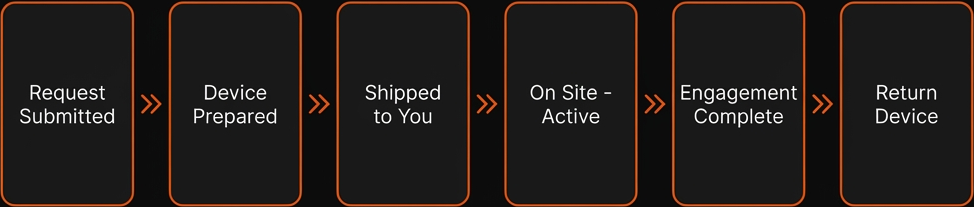
Device lifecycle from request to return
Device lifecycle from request to return
Device Status Reference
Section titled “Device Status Reference”| Status | What It Means | What You Can Do |
|---|---|---|
pending | Request awaiting approval | View details, edit request |
provisioning | Device being prepared | Monitor progress |
shipping | Device ready for pickup | View tracking info |
in-transit | Device with carrier | Track shipment |
on-site | Device delivered and operational | Full device management |
returned | Device returned to warehouse | View archived details |
Viewing Your Devices
Section titled “Viewing Your Devices”Devices Page Layout
Section titled “Devices Page Layout”Once devices are provisioned, they appear in the Devices page. The page offers two view options:
Card View (Default): Visual cards showing device overview and status at a glance.
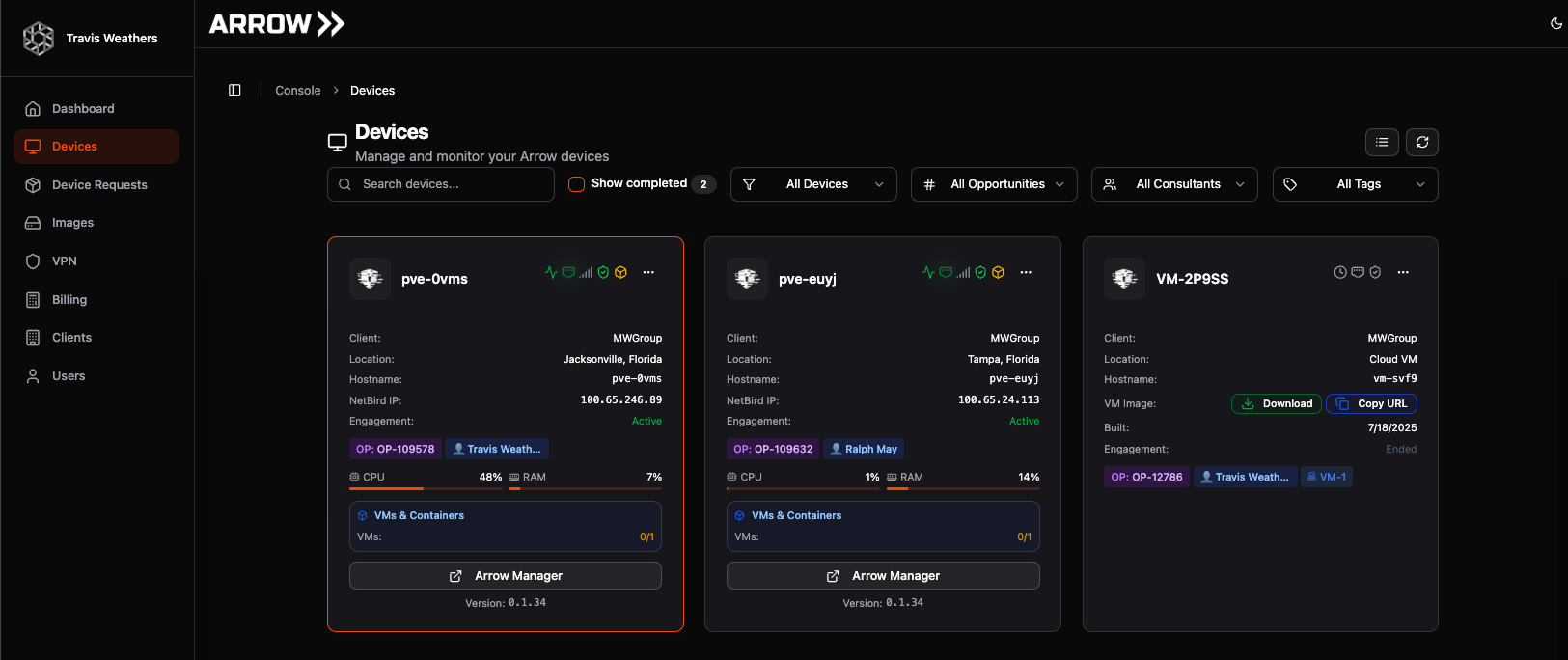 Devices Card View
List View: Compact table format for managing many devices.
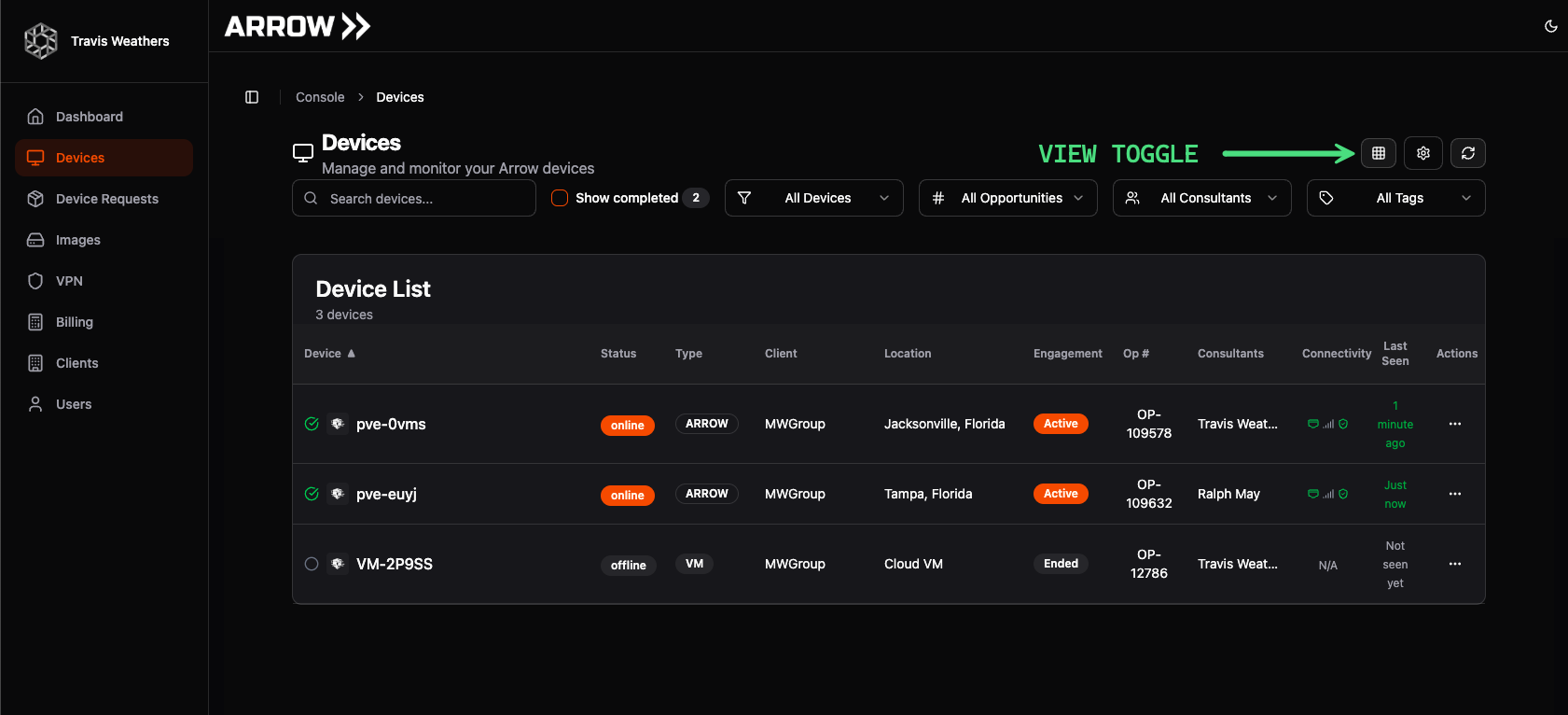 Devices List View
Toggle between views using the view icons in the page header.
Filtering and Search
Section titled “Filtering and Search”Use the search bar and filters to find specific devices:
- Search by device name, client, or serial number
- Filter by status, client, or consultant
- Toggle Show completed to include finished engagements
Device Information
Section titled “Device Information”Device Card Elements
Section titled “Device Card Elements”Each device card displays key information organized from top to bottom:
| Element | Description |
|---|---|
| Client Logo | Visual identifier for the client organization |
| Device Name | Unique hostname (format: PVE-XXXX) |
| Status Icons | Health, connectivity, and VM status at a glance |
| Client & Location | Organization and deployment location |
| Engagement Status | Active, upcoming, or completed |
| Resource Usage | Current CPU and RAM utilization |
Status Icons Explained
Section titled “Status Icons Explained”
| Icon | Status | Description |
|---|---|---|
| Heartbeat | Health Monitor | Device metrics health (updates every minute) |
| Ethernet Port | Primary Adapter | Connected via Ethernet (primary connection) |
| Signal Bars | Failover Adapter | Connected via cellular (failover mode) |
| Shield Check | VPN Status | VPN connection is stable |
| Cube | VM Status | Virtual machine deployed and healthy |
Device & Engagement Information
Section titled “Device & Engagement Information”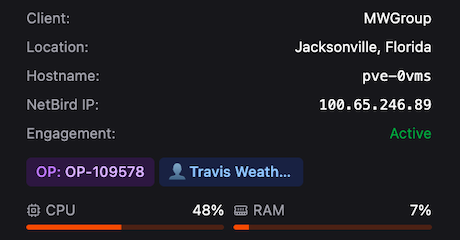
| Field | Description |
|---|---|
| Client | The client organization for this engagement |
| Location | Physical or IP-based location information |
| Hostname | Device hostname (also accessible via hostname.arrow.local) |
| NetBird IP | VPN IP address for remote access |
| Engagement Status | Derived from your request dates |
| OP & Consultants | Project number and assigned team members |
| CPU & RAM | Current resource utilization |
Virtual Machine Information
Section titled “Virtual Machine Information”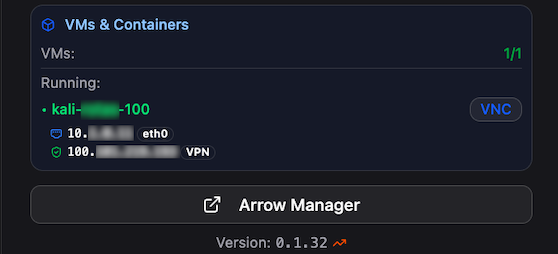
| Field | Description |
|---|---|
| VMs & Containers | Running VMs with hostname, internal IP, and VPN IP |
| NoVNC Link | Direct browser-based access to VM console |
| ARROW Manager Button | Launch the device management interface |
Device Actions
Section titled “Device Actions”Click the […] menu on any device card to access these actions:
| Action | Description |
|---|---|
| View Details | Open full device details with metrics, network info, and history |
| Access Arrow Manager | Launch the Arrow Manager dashboard for this device |
| Edit Tags | Add or remove organizational tags |
| Edit Request Details | Update dates, consultants, or notes |
| Copy Arrow Password | Copy the Arrow Manager login password |
| Copy Root Password | Copy the device root credential |
| Request VPN Setup Token | Generate a one-time token for VPN enrollment |
Copying Credentials Safely
Section titled “Copying Credentials Safely”Credentials are sensitive. When you copy a password:
- It’s copied directly to your clipboard
- No confirmation dialog appears
- Use immediately and avoid storing in plaintext
Requesting VPN Tokens
Section titled “Requesting VPN Tokens”VPN setup tokens are required when deploying VMs. To generate a token:
- Click […] on the device card
- Select Request VPN Setup Token
- Copy the generated token
- Use it during VM deployment in Arrow Manager
Tokens are one-time use and expire after deployment.
Device Details View
Section titled “Device Details View”Click View Details to open the comprehensive device details panel.
Overview Tab
Section titled “Overview Tab”- Real-time CPU, RAM, and disk metrics
- Running VMs and containers
- Location information with map view
- Client and engagement details
Network Tab
Section titled “Network Tab”- Network interface status (Ethernet, Cellular, WiFi)
- VPN connection details
- IP addresses and routing information
- VM network configurations
Details Tab
Section titled “Details Tab”- Original request information
- Hardware specifications
- Serial number and model
- Credential access
Arrow Manager Setup
Section titled “Arrow Manager Setup”Arrow Manager is the local management interface running on every physical ARROW device.
Accessing Arrow Manager
Section titled “Accessing Arrow Manager”Step 1: Click the ARROW Manager button on any device card, or select Access Arrow Manager from the […] menu.
Step 2: A new browser tab opens connecting to the device.
Step 3: Click Login to Dashboard with these credentials:
- Username: manager
- Password: Use the Arrow Password from the device card (via Action Menu)
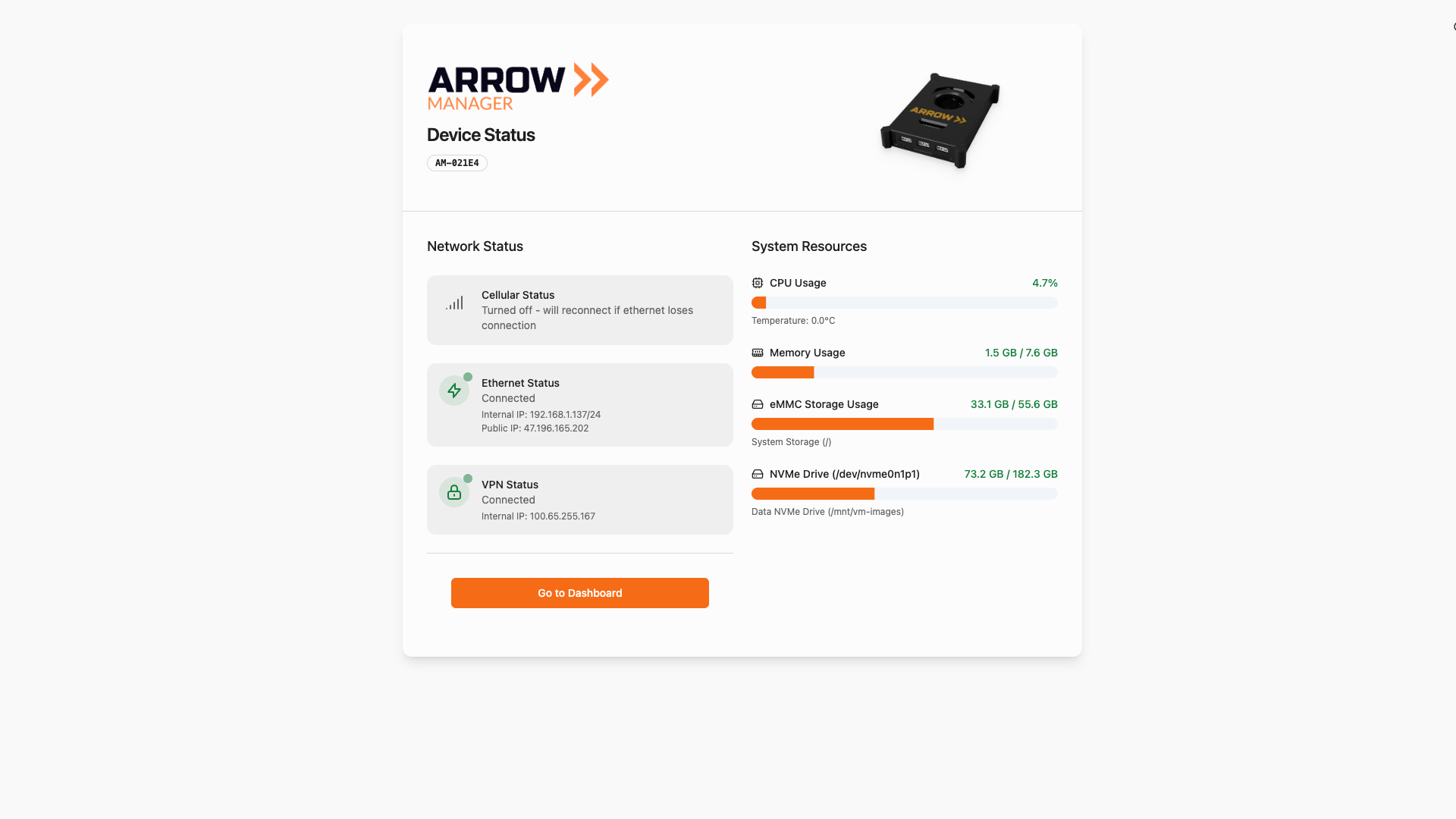
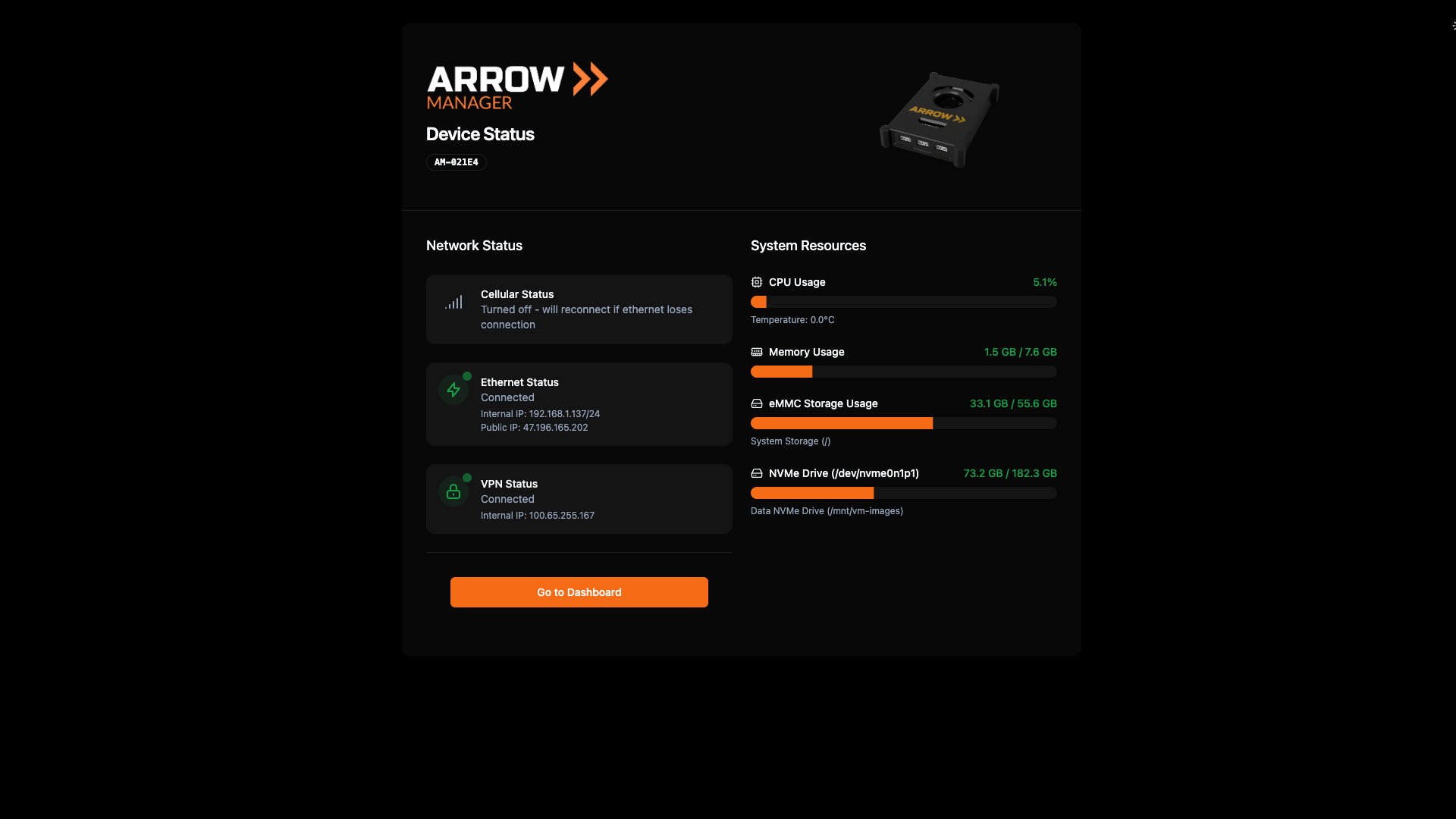
ARROW Manager Dashboard Login Screen
ARROW Manager Dashboard Login Screen
Initial Device Setup
Section titled “Initial Device Setup”After logging in, complete these steps to prepare your device for testing:
- Set LUKS Encryption Key - Encrypts the VM storage partition
- Deploy a Virtual Machine - Select from your App Library
- Configure Network Settings - Set static IP if required
- (Optional) Attach USB Devices - Connect wireless cards to VMs
Setting LUKS Encryption
Section titled “Setting LUKS Encryption”Step 1: Navigate to the Proxmox tab in Arrow Manager.
Step 2: You’ll see a message: “Encrypted Storage Setup Required”
Step 3: Click Setup Encryption and enter a strong encryption key.
Step 4: Click Create Encrypted Storage (takes 15-30 seconds).
Important Store your LUKS Encryption Key securely according to your organization’s policy. If the device loses power or reboots, you’ll need this key to restart virtual machines. VTEM Labs cannot recover lost keys.
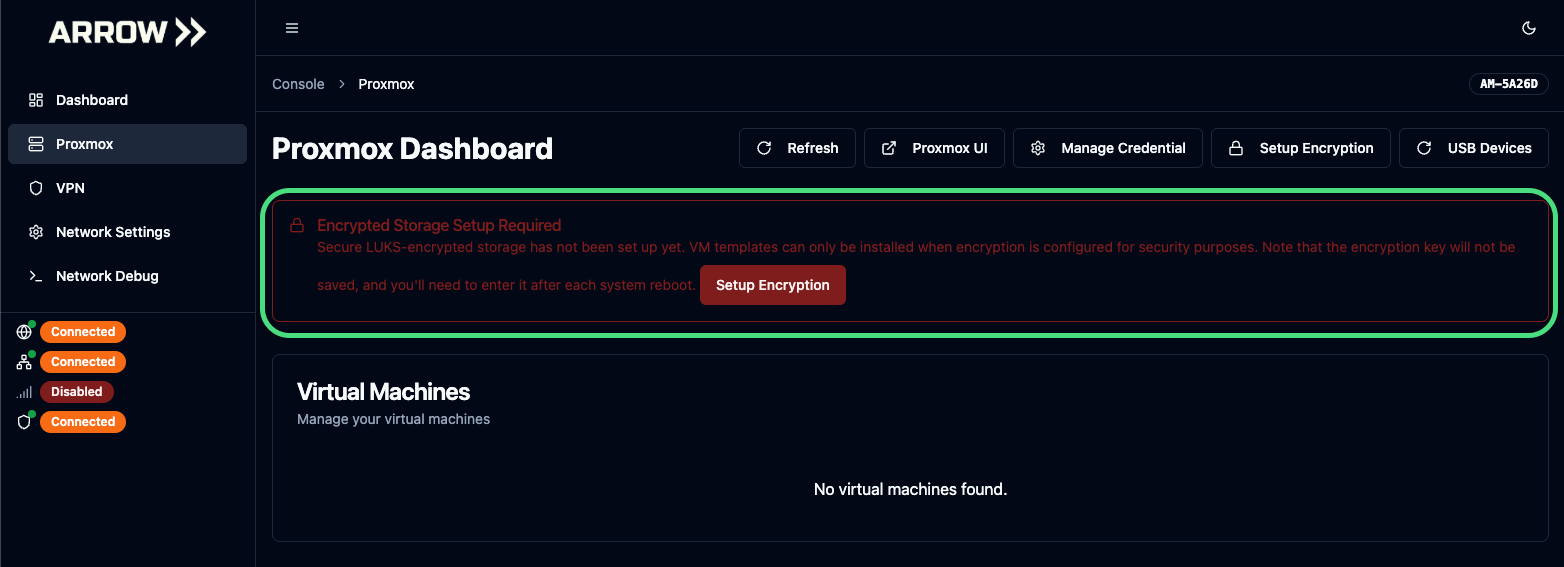 LUKS Setup Warning
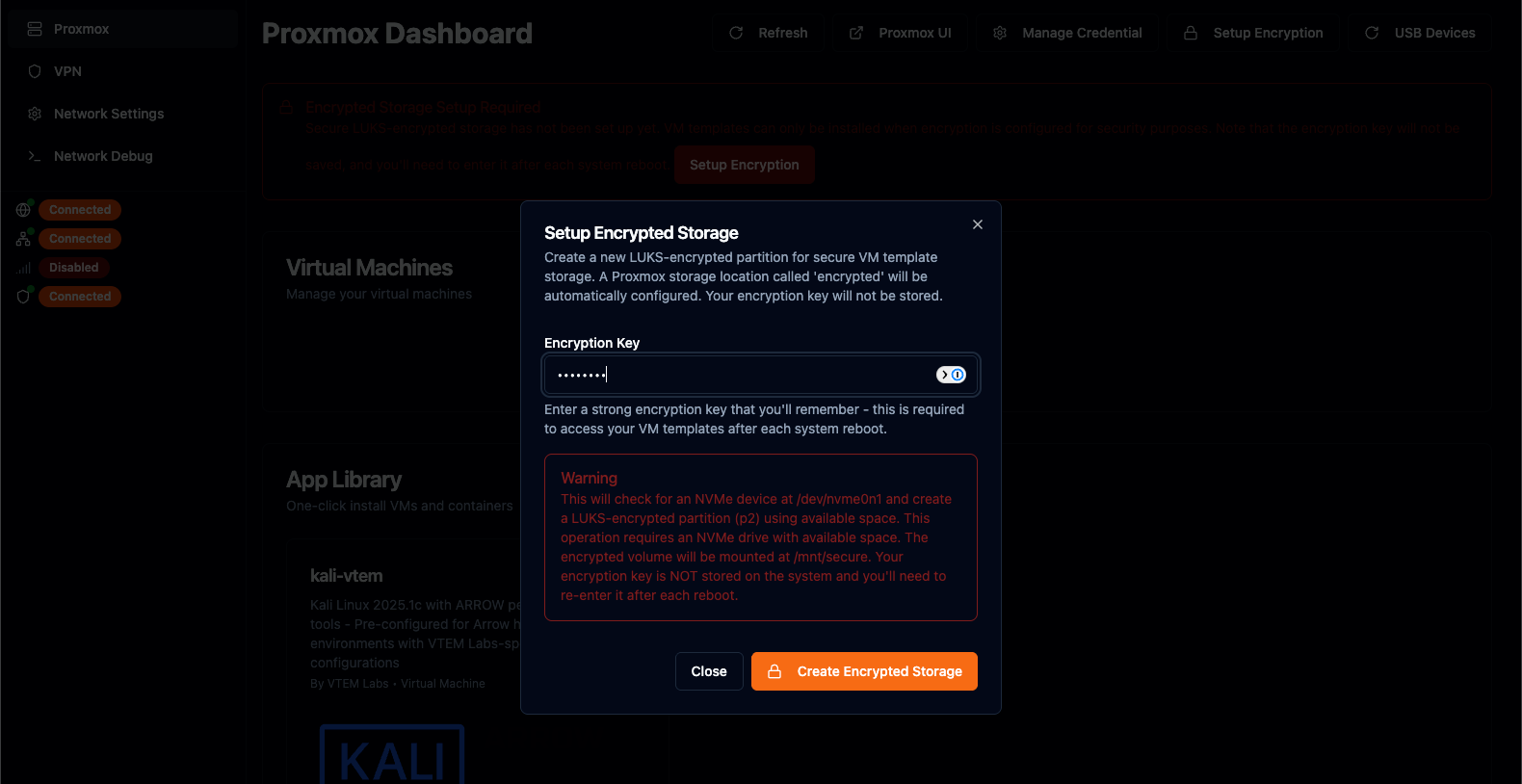 LUKS Key Setup
Deploying a Virtual Machine
Section titled “Deploying a Virtual Machine”Step 1: After LUKS setup, go to the App Library section.
Step 2: Select the VM image you want to deploy and click Deploy.
Step 3: In the Configure VM Deployment window, enter:
| Field | Required | Description |
|---|---|---|
| Root Password | Yes | Password for VM root account |
| ARROW User Password | Yes | Password for the arrow user account |
| VPN Setup Key | Yes | Generated from the Portal (Action Menu) |
| SSH Public Key | No | For passwordless SSH access |
| NetBird Device Name | No | Custom VPN device name |
| MAC Address | No | Pre-assigned MAC for NAC/DHCP reservation |
| Static IP Configuration | No | If your network doesn’t use DHCP |
Step 4: Click Create VM (takes approximately 50 seconds).
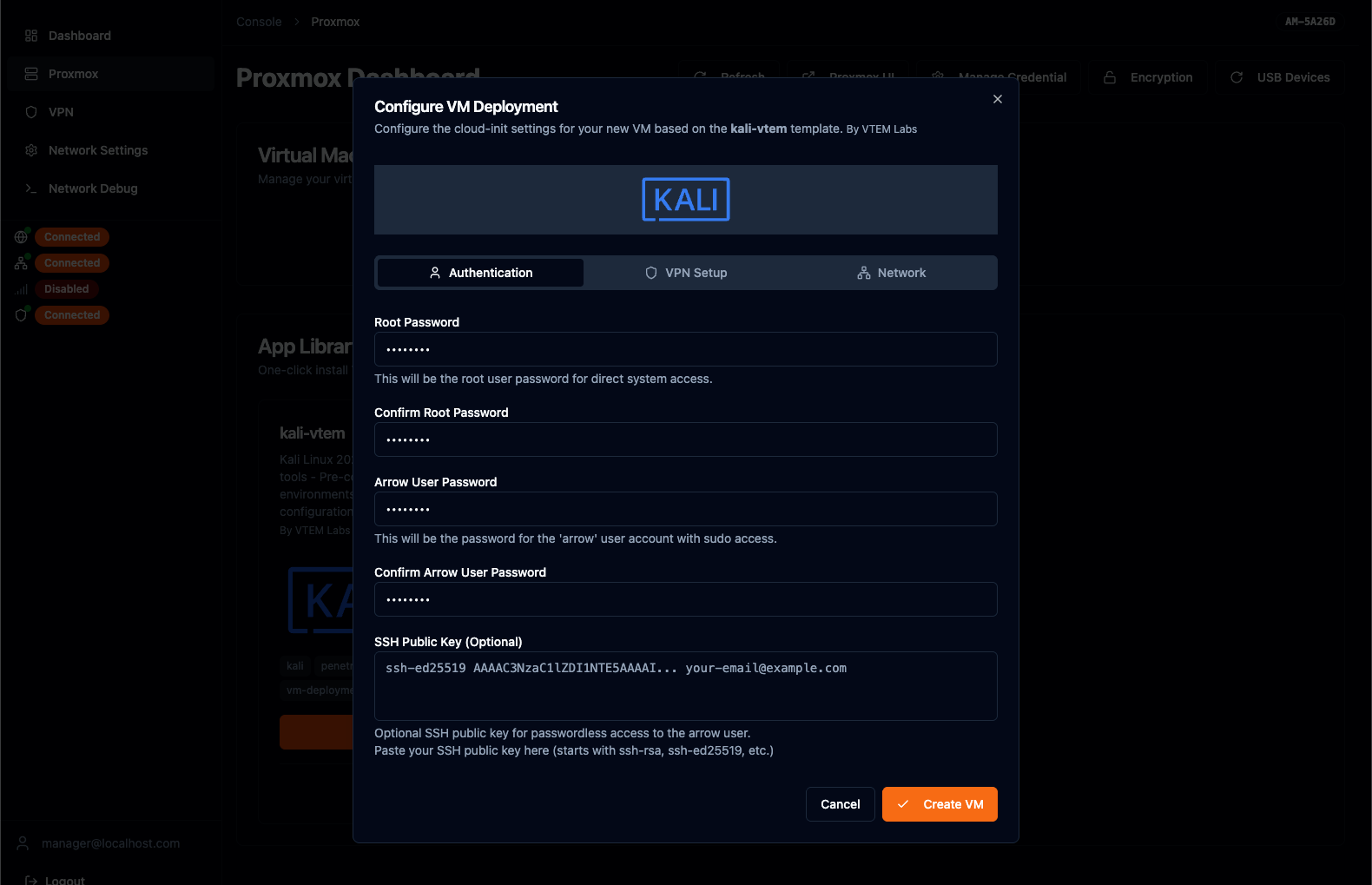 Configure VM Deployment Window
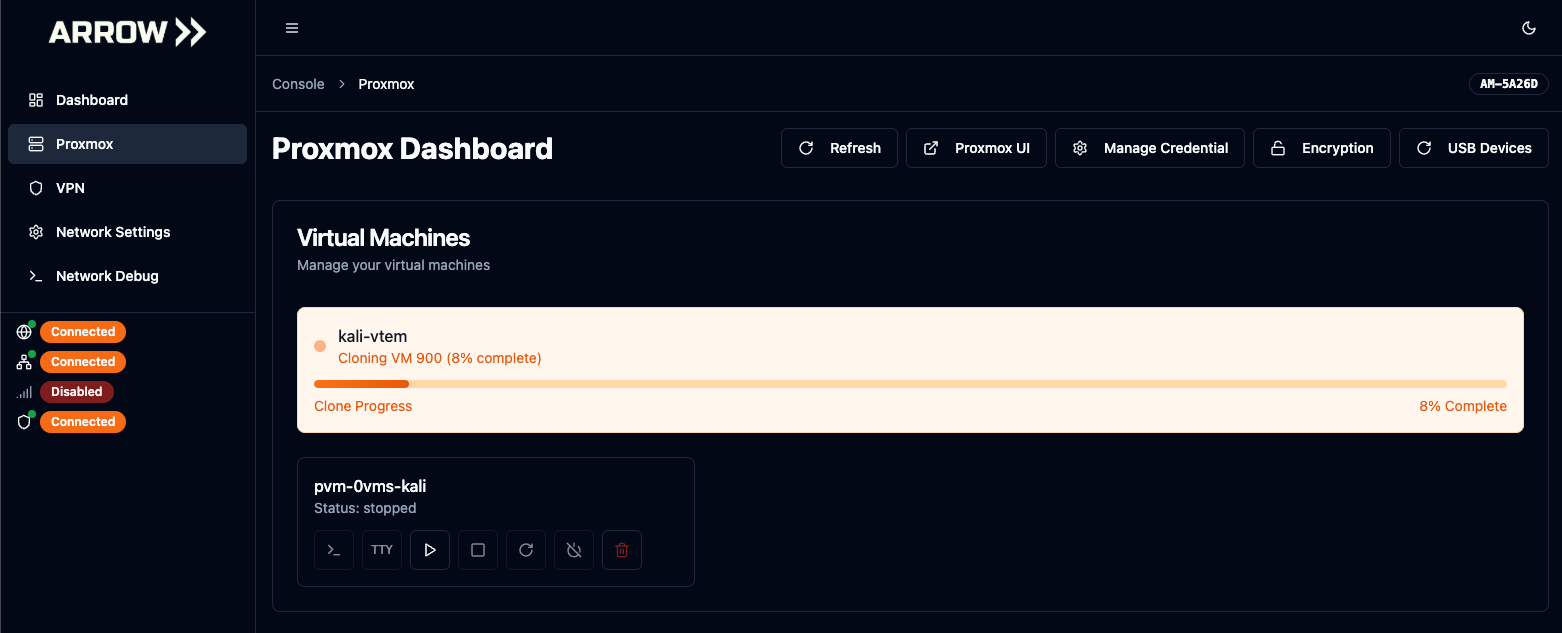 Virtual Machine Deployment Status
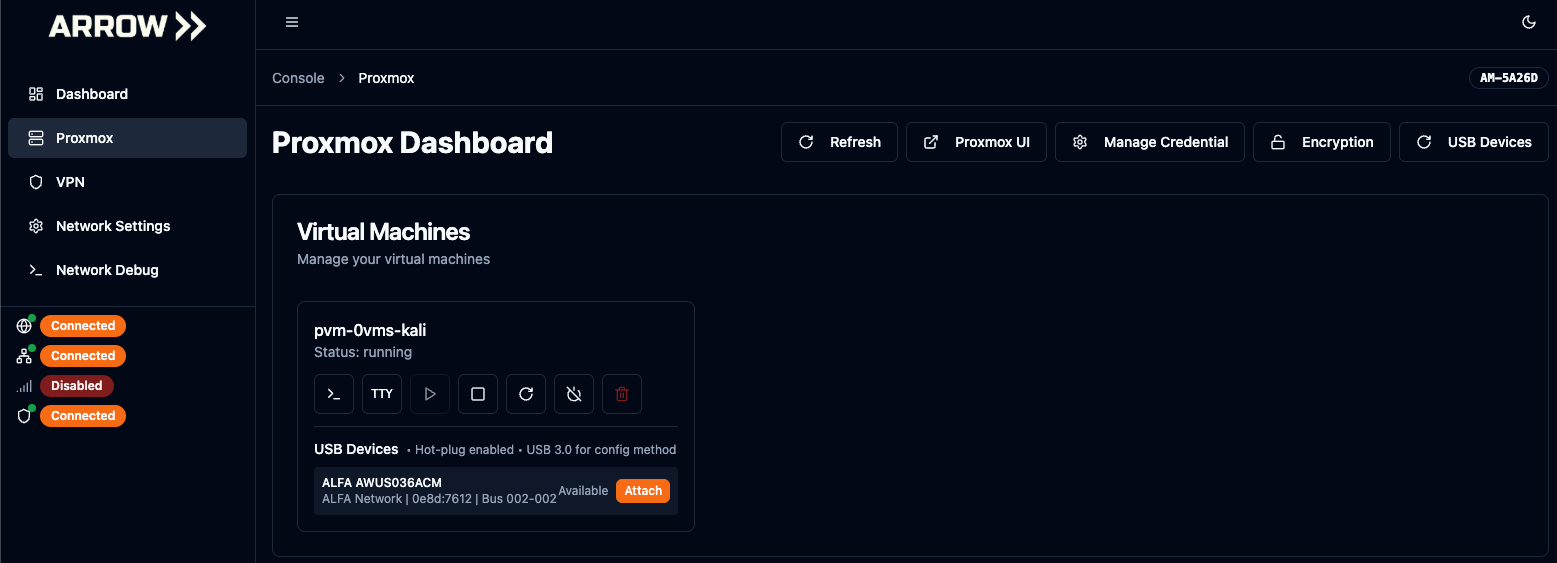 Deployed Virtual Machine with Wireless Card
Network Configuration
Section titled “Network Configuration”When to Use DHCP (Recommended)
Section titled “When to Use DHCP (Recommended)”Use DHCP when:
- Your client’s network provides automatic IP assignment
- You don’t have specific IP requirements
- The network allows outbound VPN connections
When to Use Static IP
Section titled “When to Use Static IP”Use Static IP when:
- Client requires specific IP addresses for firewall rules
- DHCP is not available on the target network
- Network security requires pre-registered IP addresses
Setting a Static IP
Section titled “Setting a Static IP”We recommend having your client assign a static IP via DHCP reservation. However, you can manually configure:
Step 1: In Arrow Manager, navigate to Network Settings.
Step 2: Select the Static IP radio button.
Step 3: Enter:
- IP Address
- Subnet Mask
- Gateway
- DNS Servers
Step 4: Save changes (no reboot required).
The device will automatically attempt to establish the VPN connection. If settings are incorrect or network security blocks the connection, the device fails over to cellular or WiFi hotspot.
Important Do not manually edit
/etc/network/interfaces. All network configurations should be made exclusively through Arrow Manager.
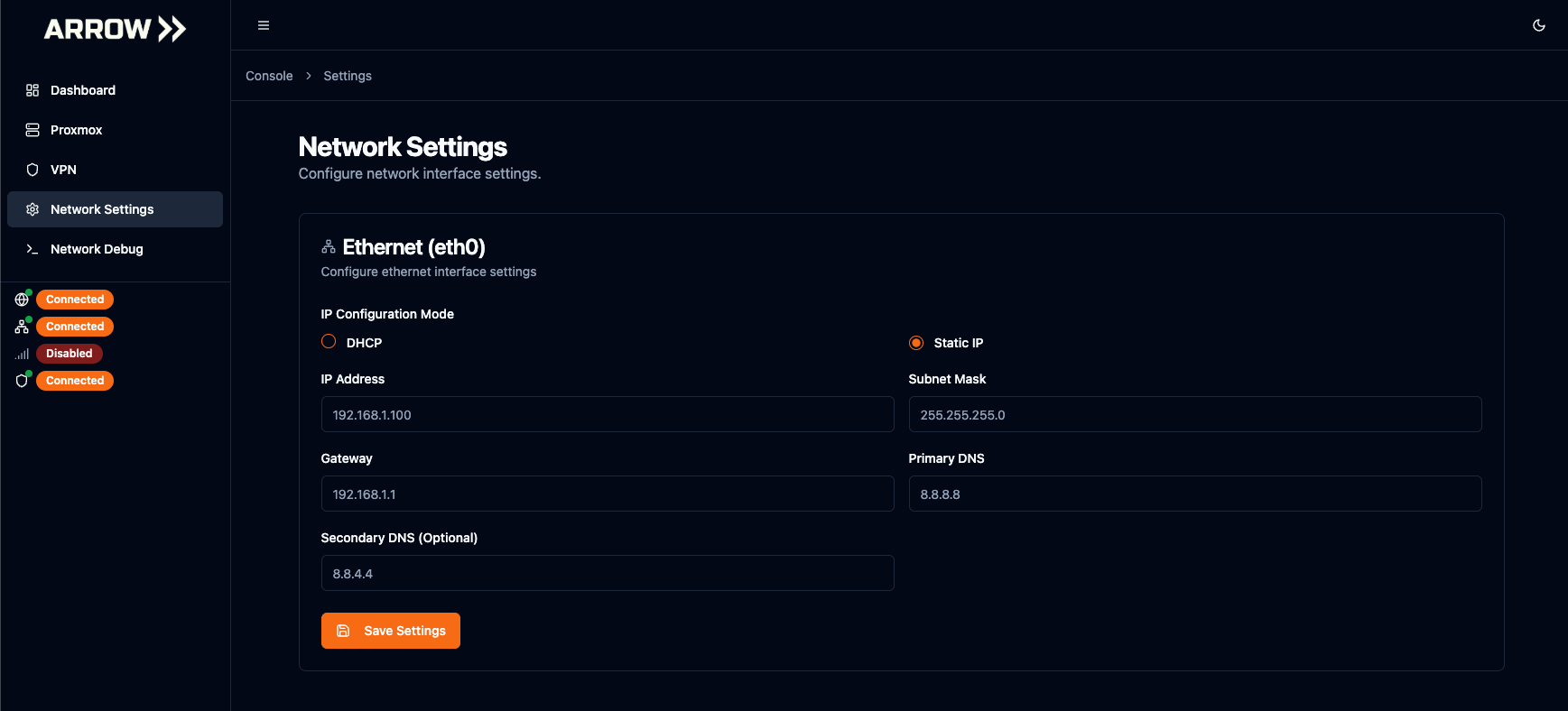 Static IP Assignment - Physical Device
Troubleshooting
Section titled “Troubleshooting”Device Shows Offline
Section titled “Device Shows Offline”Possible Causes:
- Network connectivity issue at the deployment site
- VPN connection blocked by firewall
- Device powered off
Solutions:
- Check with on-site contact about network status
- Verify VPN ports are allowed (contact support for requirements)
- Confirm device has power
Cannot Access Arrow Manager
Section titled “Cannot Access Arrow Manager”Possible Causes:
- VPN not connected
- Incorrect credentials
Solutions:
- Verify VPN status icon is green
- Use the Copy Arrow Password action for correct credentials
- Try refreshing the page
VM Not Deploying
Section titled “VM Not Deploying”Possible Causes:
- LUKS encryption not set up
- Invalid VPN setup token
- Insufficient disk space
Solutions:
- Complete LUKS setup first
- Generate a fresh VPN setup token
- Check disk space in the Proxmox tab
Related Documentation
Section titled “Related Documentation”- Device Requests - Creating and managing device requests
- Device Shipments - Tracking shipments and delivery
- Arrow Manager Overview - Detailed Arrow Manager documentation
- USB Devices - Attaching USB devices to VMs
- VPN Management - VPN configuration and troubleshooting