
Arrow Manager Authentication
Arrow Manager supports two authentication methods: SSO (Single Sign-On) for organization accounts and Local Login for direct device access.
Login Methods
Section titled “Login Methods”SSO Login (Recommended)
Section titled “SSO Login (Recommended)”SSO login redirects you to auth.vtemlabs.com, which is already configured with your organization’s identity provider. This is the recommended method for most users.
Step-by-Step:
- Open Arrow Manager: Navigate to your device’s Arrow Manager URL
- Click “Login with SSO”: Select the SSO option on the login screen
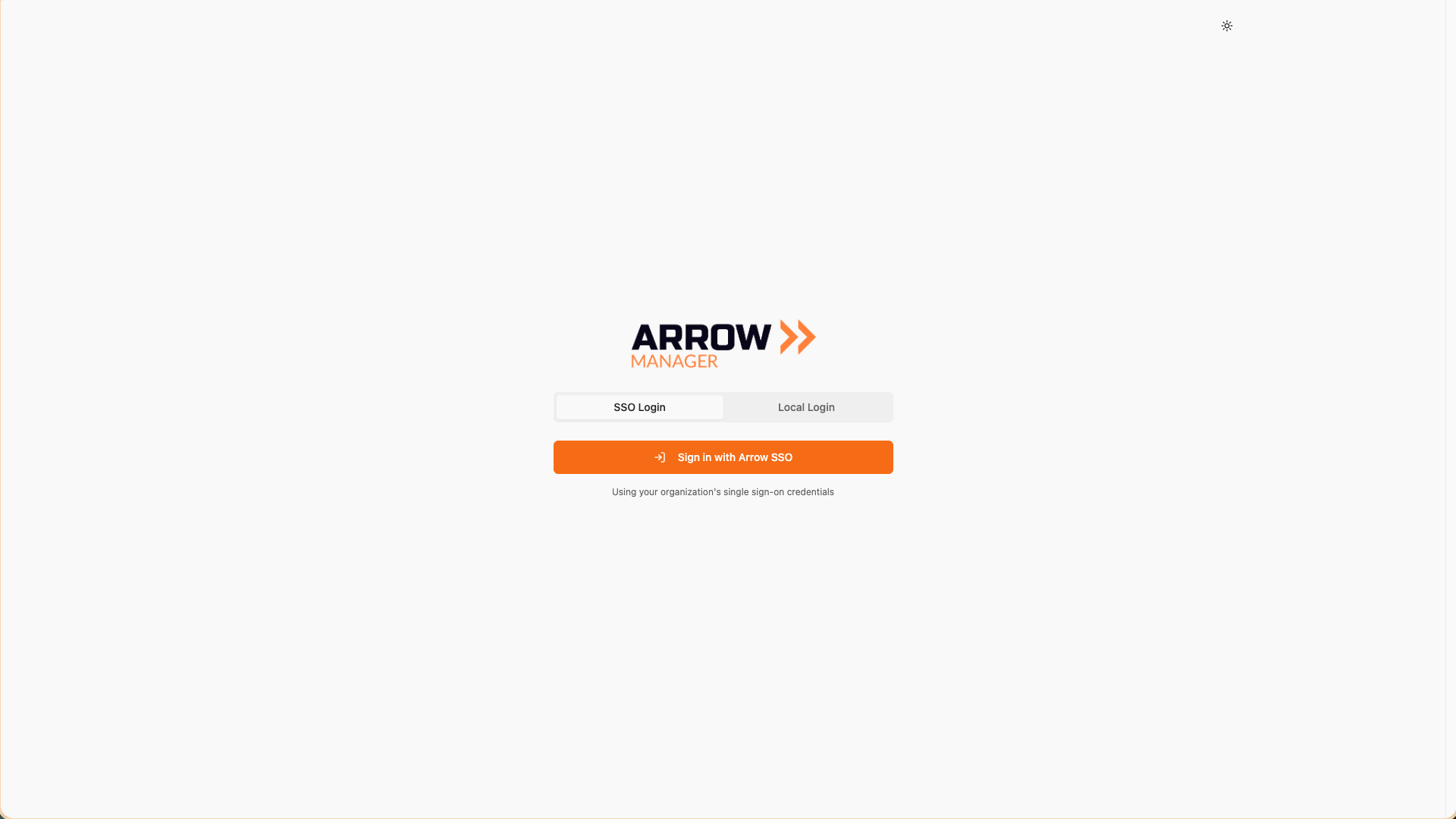
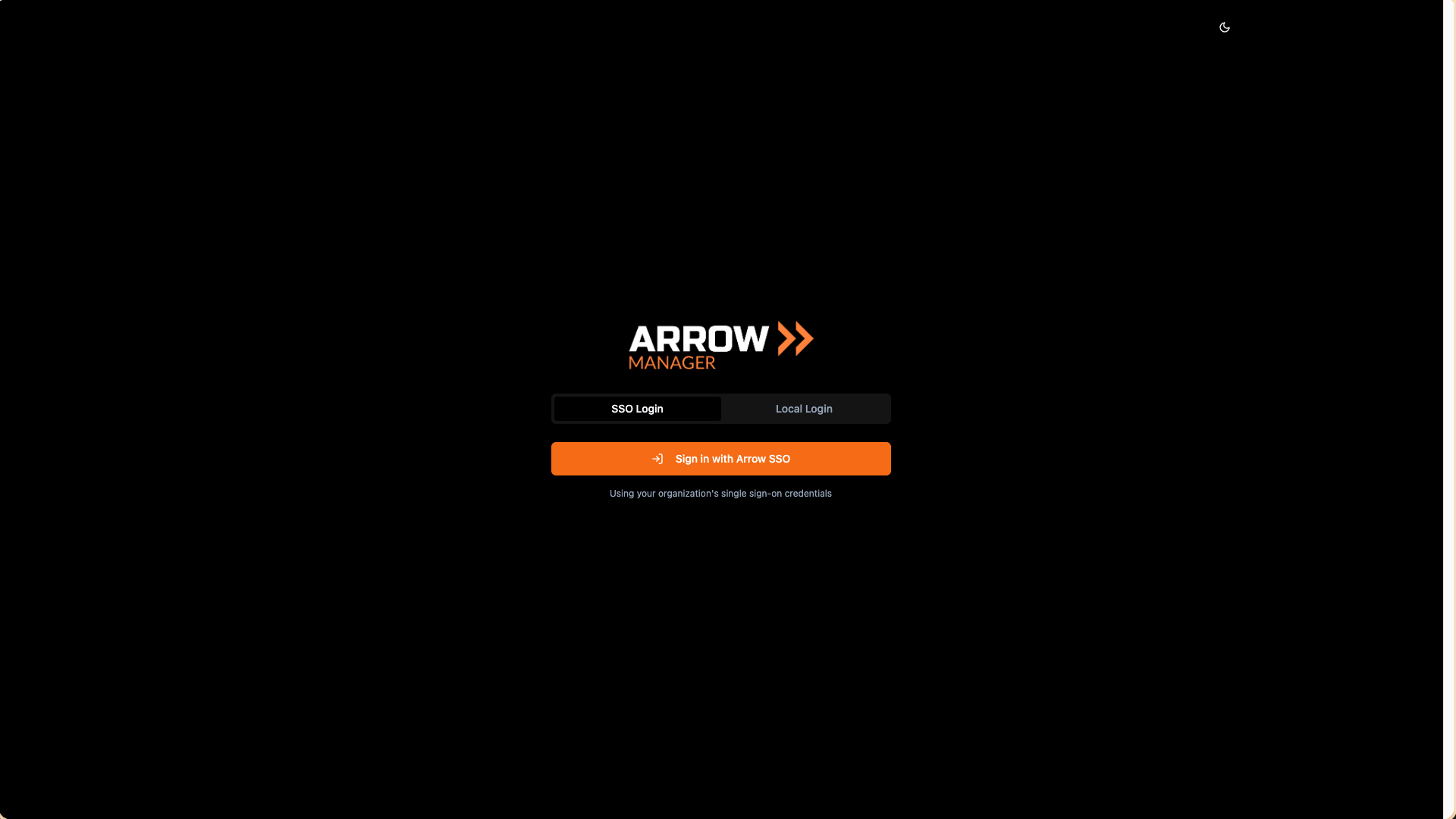
Click 'Login with SSO' to authenticate
Click 'Login with SSO' to authenticate
- Authenticate at auth.vtemlabs.com: You’ll be redirected to the VTEM Labs authentication portal where you can sign in with your organization credentials
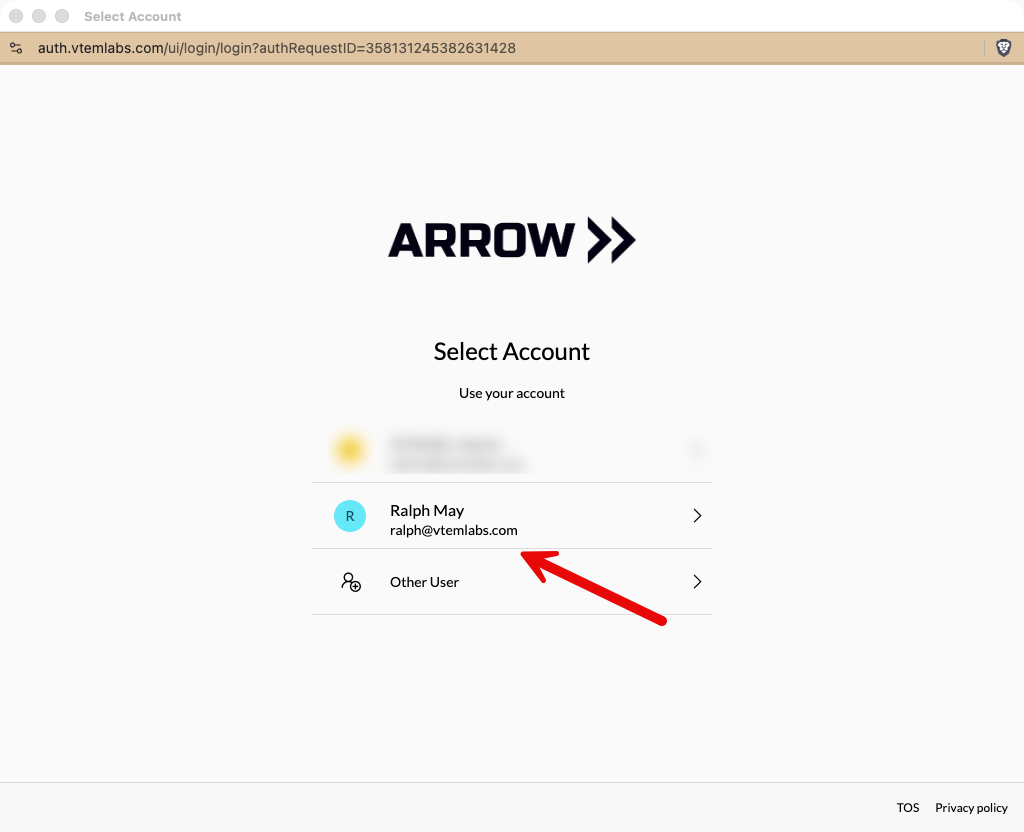
auth.vtemlabs.com - Sign in with your organization account
auth.vtemlabs.com - Sign in with your organization account
- Access Granted: After successful authentication, you’ll be redirected back to Arrow Manager
Benefits of SSO:
- Use your existing organization credentials
- No separate passwords to remember
- Centralized access management by your IT team
- Enhanced security with MFA if enabled by your organization
Local Login
Section titled “Local Login”Local login provides direct access using credentials stored on the device. Use this method when SSO is unavailable or for initial device setup.
Step-by-Step:
- Open Arrow Manager: Navigate to your device’s Arrow Manager URL
- Click “Local Login”: Select the local login option
- Enter Credentials:
- Username:
manager - Password: Use the Arrow Password from the ARROW Portal (via Device Actions menu)
- Username:
- Access Granted: You’ll be redirected to the dashboard
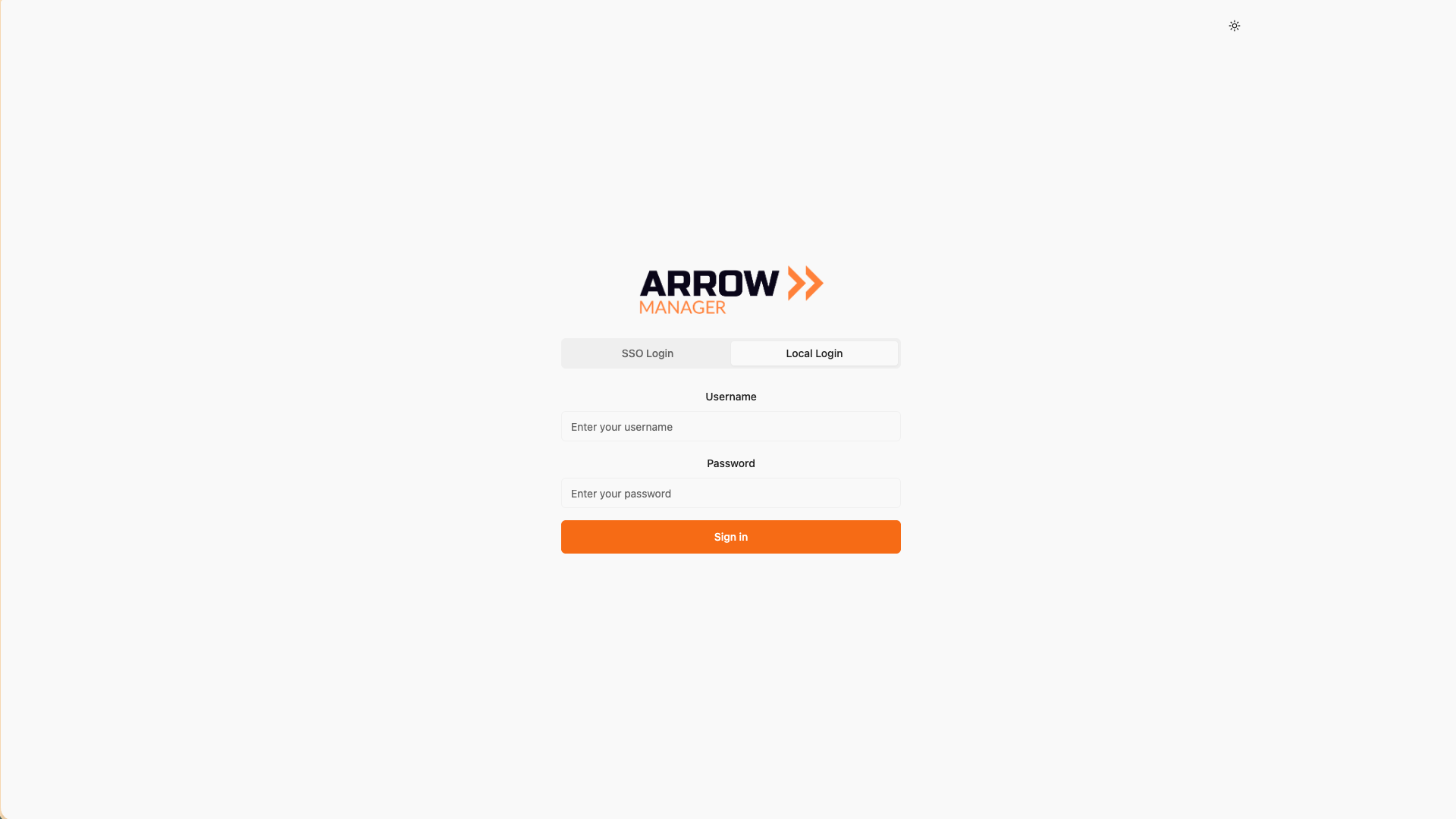
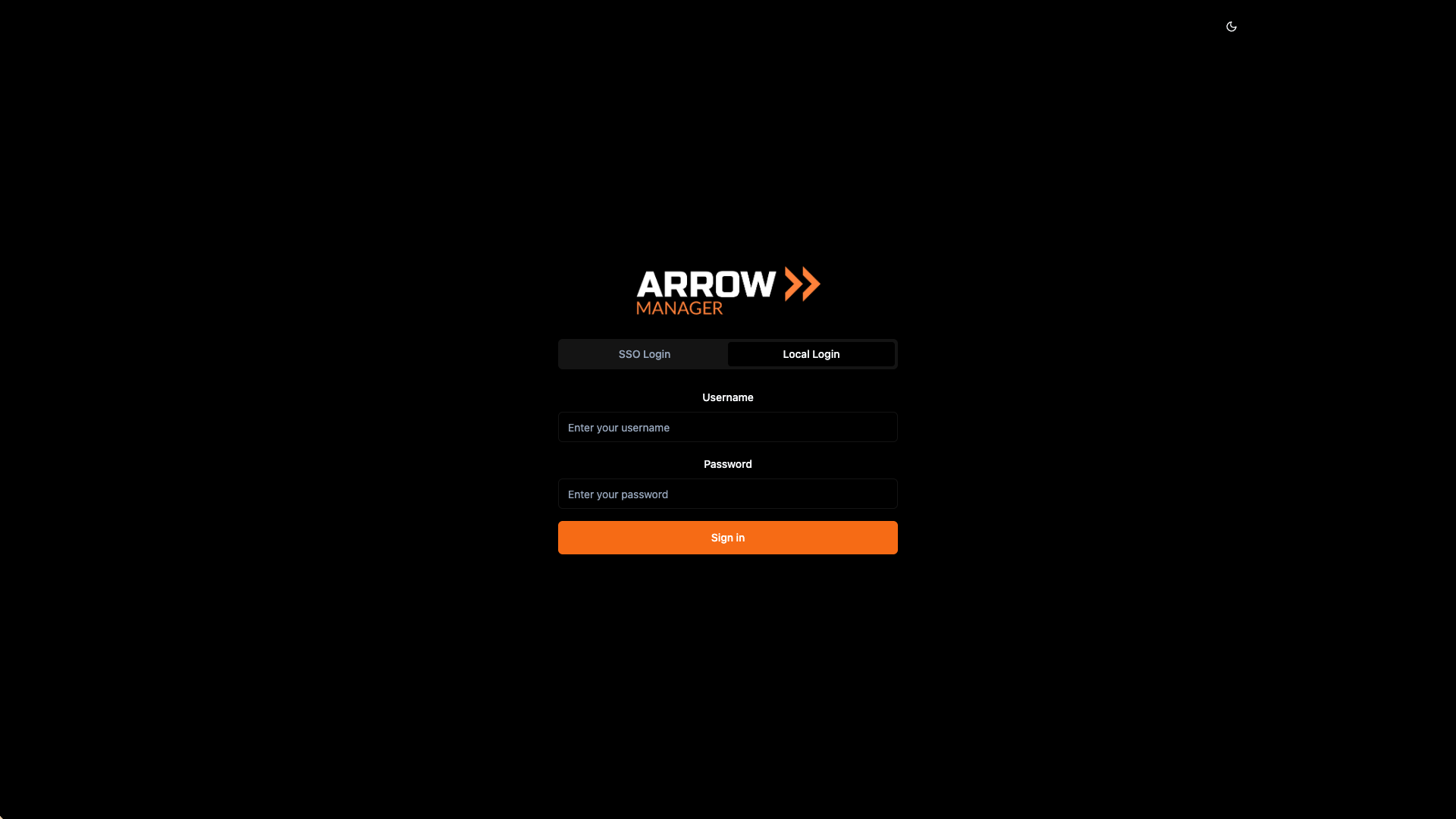
Local Login - Use device credentials
Local Login - Use device credentials
When to use Local Login:
- During initial device setup
- When SSO is temporarily unavailable
- For troubleshooting network/SSO issues
- When accessing devices not connected to your organization’s network
What You Need
Section titled “What You Need”| Login Method | Requirements |
|---|---|
| SSO | Organization account with Arrow Manager access, network connection |
| Local | Device password from ARROW Portal, network connection to device |
Session Management
Section titled “Session Management”Active Sessions
Section titled “Active Sessions”Once logged in:
- Your session remains active while you use Arrow Manager
- Sessions persist until you log out or they expire
- You can access all device features available to your account
Logging Out
Section titled “Logging Out”To end your session:
- Click your user menu (usually in the top right corner)
- Select Logout
- Your session ends and you return to the login screen
Session Expiration
Section titled “Session Expiration”Your session may expire due to:
- Extended inactivity
- Token expiration
- Security policies
When your session expires, simply log in again to continue.
User Access Levels
Section titled “User Access Levels”Your access level in Arrow Manager depends on your role:
| Role | Access |
|---|---|
| Full Access | All features: Dashboard, Settings, VPN, Terminal, Proxmox |
| Network Admin | Limited to Settings and WiFi configuration only |
If you’re a network admin, you’ll be directed to the Settings page after login.
Security Best Practices
Section titled “Security Best Practices”- Log out when finished: End your session when you’re done using Arrow Manager
- Use secure networks: Access Arrow Manager over trusted network connections
- Report issues: Contact your administrator if you notice unusual account activity
Troubleshooting Login Issues
Section titled “Troubleshooting Login Issues”Cannot Log In
Section titled “Cannot Log In”Try these steps:
- Verify you’re using the correct username and password
- Clear your browser cache and cookies
- Try a different web browser
- Check your network connection to the device
Session Expired Unexpectedly
Section titled “Session Expired Unexpectedly”If your session keeps expiring:
- Log in again
- Ensure your network connection is stable
- Contact your administrator if the problem continues
Access Denied After Login
Section titled “Access Denied After Login”If you see an access denied message:
- Verify your account has Arrow Manager access
- Contact your administrator to check your permissions
Getting Help
Section titled “Getting Help”If you continue to have login problems:
- Check with your organization administrator
- Verify your account is active and has the correct permissions
- See the Troubleshooting guide for more solutions
Related Documentation
Section titled “Related Documentation”- Overview - What Arrow Manager does
- Accessing Arrow Manager - How to connect to your device
- Troubleshooting - Common issues and solutions